
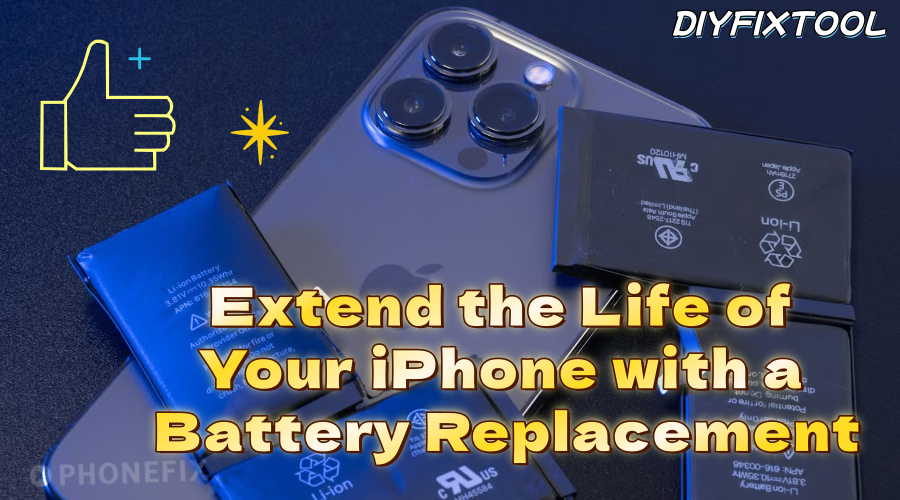
If your iPhone battery drains quickly, runs slowly, or shuts down unexpectedly, chances are the battery is holding your device back. Replacing the battery is a simple way to extend your phone's life and improve its performance. In this guide, Phonefix walks you through how to tell if it's time for a replacement, what your options are, the tools you'll need, DIY steps, and important tips after the repair.

I. Signs You Need to Replace Your Battery
To determine whether your iPhone battery needs replacement, consider two factors: subjective experience and system data.
Subjective Experience:
· Battery drains quickly during normal use (e.g., short videos, photos, navigation).
· Unexpected shutdowns during use.
· Even with an iPhone Charging Cable, the charging speed is still very slow.
System Data:
· Go to Settings → Battery → Battery Health. If maximum capacity is below 80%, replacement is recommended.
If any of the above conditions apply to you, battery replacement is a reasonable and cost-effective option. Compared to purchasing a new device, replacing the battery can extend your iPhone’s usable life by 1–3 years and restore some of its original performance.

II. Main Battery Replacement Options
If you've decided to replace the battery or other iPhone Components, you’ll typically have three options—each with its pros and cons. Choose the one that best fits your needs.
1. Official Apple Repair Service
Pros:
a. Uses original batteries with guaranteed quality and compatibility.
b. Comes with official warranty.
c. Reliable installation and low risk.
Cons:
a. Higher price, typically around $79 for most models.
b. Long turnaround time, usually 3–5 business days or longer.

2. Third-Party Repair Services
Pros:
a. Faster service, often completed on the same day.
b. Slightly lower prices, usually between $50–70.
c. Some shops offer warranty on parts or labor.
Cons:
a. Battery quality may vary; choose reputable repair shops.
b. Non-original parts may affect system compatibility.
3. DIY Replacement
Pros:
a. Lowest cost—battery and toolkits available for $10–30.
b. Full control over timing, no waiting.
Cons:
a. High difficulty—mistakes are easy for beginners.
b. No warranty—any failures must be handled by yourself.

III. Preparations
If you're looking to save money by replacing the battery yourself, these preparation steps are essential—do not skip them.
1. Check Battery Health
Go to Settings > Battery > Battery Health to check capacity. If it's below 80%, replacement is strongly recommended. If the system displays "Service" or "Important Battery Message Cannot Be Verified, "it's also a sign to replace it.
2. Back Up Your Data
Regardless of the replacement method, always back up your data beforehand. Use iCloud or iTunes to prevent data loss in case anything goes wrong.
3. Choose a Compatible Battery
Choose original or high-quality compatible iPhone Batteries that include a warranty. Confirm the battery's capacity (mAh) is equal to or slightly higher than the original, and ensure compatibility with your specific iPhone model.

4. Essential Repair Tools
· Suction Cup: Helps safely open the screen and remove the battery.
· Screwdriver Set: Required to remove the bottom screws and internal components.
· Heating Tools: Use a heat gun or heating pad to soften adhesive behind the battery.
· Battery Adhesive Strips: For securing the new battery in place.
· Tweezers: For handling small parts during assembly and disassembly.
IV. DIY Repair Steps
Once all tools are ready, you can begin the repair. Below are the core steps for replacing the battery, using an iPhone 15 as an example:
Step 1: Remove Bottom Screws
Turn off your iPhone completely. Use a pentalobe screwdriver to remove the two screws next to the charging port at the bottom of the phone.

Step 2: Heat the Screen to Soften Adhesive
Use a hot air gun or YCS Heating Pad to gently heat the edges of the screen for about one minute. This helps soften the adhesive and makes it easier to open the device.
Step 3: Open the Screen and Disconnect Cables
Use a suction cup and a plastic pry tool to carefully lift and separate the screen along the edges. Be patient and gentle to avoid tearing the flex cables. Once the screen is open, remove the metal shield plates covering the connectors. Then use a spudger to disconnect the screen and battery cables.
Step 4: Remove the Old Battery
Slowly pull out the adhesive tabs underneath the battery. If the adhesive breaks, apply mild heat to the back of the battery to loosen the glue. Use a plastic pry tool to gently lift and remove the old battery without damaging the mainboard.

Step 5: Install the New Battery and Reassemble
Apply new adhesive strips, place the new battery into the housing, and reconnect all necessary iPhone Sensor Flex Cables. Reinstall the metal shields, carefully press the screen back into place, and power on the device to confirm it works properly. Finally, reinstall the two bottom screws to complete the process.
Step 6: Power On and Test
Turn on the phone and check if it runs normally. Go to Settings > Battery to confirm the system detects the new battery. Let the phone run for a while to observe battery performance.
Tip:Perform a full charge-discharge cycle to help calibrate the battery and avoid leaving the phone at 0% or 100% charge for extended periods.

V. Conclusion
When replacing an iPhone battery, choosing the right battery and proper tools is essential. Replacing the battery will help you extend the life of your iPhone, and improve your overall experience.If you're looking for high-quality repair tools or want to stay up to date with the latest iPhone repair techniques, feel free to reach out to China Phonefix. We're here to provide expert support and help you complete your repairs with confidence.


