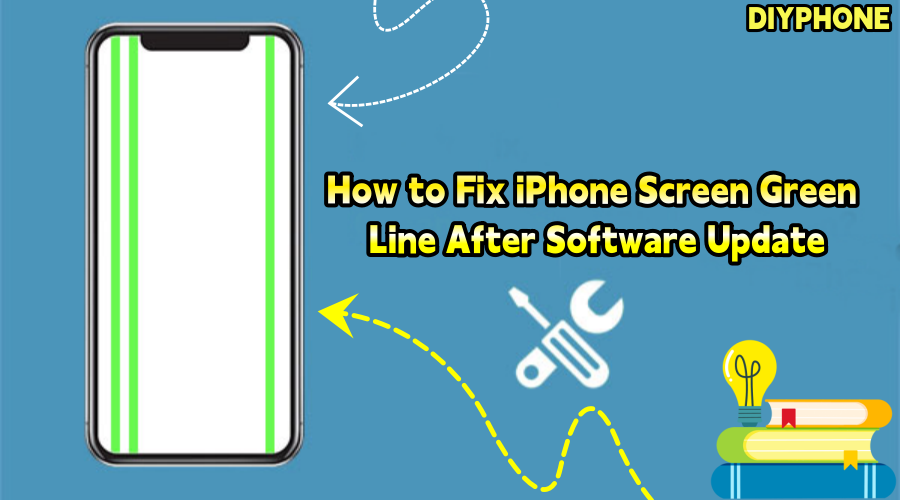
During smartphone use, system updates are supposed to bring performance improvements or new features. However, many users report that after completing a major iOS update, a thin green line suddenly appears on the screen. In fact, the appearance of a green line does not always mean the hardware is scrapped. DIYPHONE will explain the causes of the green line from a professional perspective and provide a full range of solutions from software debugging to hardware repair.

I. Analysis of Causes for Green Lines on Phone Screens
The green line on a phone screen is usually a single pixel wide and is commonly seen in modern models using OLED or AMOLED displays. To solve the problem, one must first understand why "green" appears.
1. OLED Pixel Arrangement Principle
An iPhone OLED screen is composed of countless independent red, green, and blue (RGB) sub-pixels. When a column or row of green sub-pixels stays in a high-brightness state due to voltage abnormalities, calibration errors, or driver command conflicts, a green line forms on the screen.
2. Conflicts Triggered by Software Updates
· Display Driver Mismatch: After a system update, the new display driver may cause mapping errors with the old hardware firmware, resulting in abnormal voltage control of the pixel dot matrix.
· Calibration Parameter Changes: Major updates often involve adjustments to brightness curves and color profiles. If the screen itself has potential pixel weaknesses, the voltage fluctuations after the update will completely expose them.
· Thermal Stress Damage: During the firmware update process, the processor runs at high load for a long time, generating a large amount of heat. If the phone has poor heat dissipation (such as updating while charging with a thick case), high temperatures may damage the connection at the display flex cable.

II. Determining Fault Nature: Software or Hardware
Before starting any repair, the root cause of the fault must be clarified. Please perform a preliminary diagnosis using the following methods:
1. Screenshot Test Method
Take a screenshot while the green line is present and send the screenshot to another device for viewing.
Judgment: If the line can be seen in the screenshot, it is a software issue at the system rendering layer; if the screenshot is completely normal, it indicates a physical display module or flex cable failure.
2. Startup Environment Check
Observe whether the line exists during the phone restart at the brand logo stage or when entering Recovery Mode.
Judgment: If the line is present before the system loads, it usually points to hardware damage.
3. Repair Preparation: Professional Tool List
If the preliminary investigation confirms it is not a simple system bug and you plan to perform advanced inspections or send it for repair, it is recommended to understand or prepare the following professional maintenance tools:
· Screwdriver Set: Includes Pentalobe (star), Phillips (cross), and Y-type screwdrivers for disassembling the body.
· Ultra-thin Opening Picks and Suction Cup: Used to safely separate the screen from the middle frame and avoid scratching the casing.
· Anti-static Wrist Strap: Prevents human static electricity from breaking down the CMOS or driver IC on the motherboard.
· BGA Soldering Station: Weaken the screen adhesive for non-destructive disassembly.
· Precision Tweezers: Used to pick up small flex cable buckles and parts.
· Insulated Ceramic Spudger: Used to disconnect the battery and display flex cable connections.

III. Hardware and Software Repair Solutions
Before deciding to replace the hardware, please try the following safety methods in order:
1. Hardware Repair Steps and Suggestions
If the above methods are ineffective and the line is not visible in screenshots, hardware intervention must be considered.
· Check Flex Cable Connection
Sometimes the green line is caused by a loose flex cable or dust contaminating the contacts. Repair technicians will use YCS Ultrasonic Cleaner to clean the display flex cable interface and re-buckle it.
· Screen Assembly Replacement
If the internal circuitry of the OLED panel is broken (usually due to overheating during updates or extrusion), replacing the screen assembly is the only solution.
2. Forced Restart and System Recalibration
Completely turn off the phone power, let it sit for 5 minutes, and then restart. This helps clear temporary display driver failures and reloads screen calibration values.
3. Manually Adjust Display Parameters
· Turn off "Adaptive Brightness."
· Switch the color mode from "Vivid" to "Natural" or "Standard."
· Temporarily turn off "Eye Comfort Shield" or "Blue Light Filter."
· Principle: Changing the voltage response of OLED pixels at specific brightness levels can sometimes mask or correct abnormal pixel rows.
4. Enter Safe Mode
In Safe Mode, third-party applications are prohibited from running. If the green line disappears in Safe Mode, it indicates that it is caused by a display conflict at the application level, and recently installed suspicious software needs to be uninstalled.
5. Firmware Rollback or Waiting for Patches
Follow official communities. If it is a known bug caused by a specific firmware version, manufacturers usually release emergency fix patches. If officially supported, you can roll back to an older system version via a computer-side tool after backing up data.
6. Factory Data Reset
This is the final software repair method. By clearing all cache and configuration conflicts, the system display environment is completely reset.
Step1: Back up all important contacts, photos, and application data.
Step2: Enter system settings and select "Factory Data Reset."
Step3: Observe the screen after the reset; do not rush to restore the backup.
IV. Conclusion
The green line issue appearing after a software update is essentially a "stress response" of a hardware weakness to a software change. Through a scientific diagnostic process and the use of Professional repair toolkits, you can distinguish between a simple driver conflict or expensive screen damage and perform some basic maintenance. We hope this article is helpful to you.