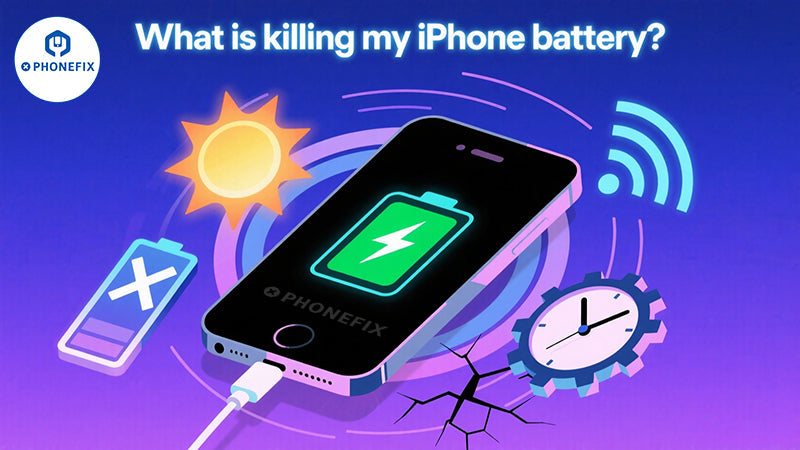
Is your iPhone frequently plummeting from full charge to "Low Battery" warnings? Does the "Less than 20% battery" alert pop up frequently even when you barely use your phone? iPhone Battery degradation not only ruins your user experience but also risks leaving you "disconnected" at critical moments. Don't worry, follow this guide as China Phonefix uncovers the culprits behind rapid battery drain and shares proven strategies to extend battery life, helping your device last longer on a single charge.
Essential Preliminary Checks
Before diving into complex solutions, start with these foundational steps to rule out common issues:
Restart Your Device: A simple reboot often resolves temporary glitches or background processes hogging power. For unresponsive devices, perform a force restart.
Update Software: Ensure iOS and all apps are up to date. Updates frequently include battery optimizations and bug fixes.
Adjust Screen Brightness: High brightness is a top battery drainer. Enable auto-brightness via Settings > Accessibility > Display & Text Size (toggle at the bottom) to adapt to ambient light.
Check Battery Health: Navigate to Settings > Battery > Battery Health. If "Service" is displayed, skip to the "Faulty Battery" section below.
Enable Low Power Mode: Temporarily extend battery life via Settings > Battery. Add the Low Power Mode toggle to Control Center for quick access.
Root Causes & Solutions
1. Heavy Usage Patterns
Advertised battery life (e.g., "up to 95 hours of audio playback" for iPhone 13 Pro Max) reflects ideal conditions, not real-world use. To mitigate excessive drain:
Identify Power-Hungry Apps: Go to Settings > Battery to view app-specific power consumption. Limit usage of high-drain apps (e.g., GPS, games, streaming services).
Restrict Background Activity: Disable Background App Refresh for non-essential apps via Settings > General > Background App Refresh.
Minimize Notifications: Turn off vibrations and shorten screen auto-lock time. Use Do Not Disturb/Focus Mode to prevent constant iPhone screen wake-ups from notifications.
2. Software Bugs or Glitches
Poorly optimized apps or iOS updates can cause unexpected battery drain. Address this by:
Checking Recent App Updates: In the App Store, tap your profile icon to view recently updated apps. Uninstall and reinstall apps that coincide with increased battery use.
Reinstalling iOS: If issues persist, perform a clean iOS install via iTunes (after backing up data) to resolve potential system corruption.
3. Weak Cellular or Network Signals
When in low-coverage areas, iPhones boost antenna power to maintain connectivity, rapidly draining battery. Fixes include:
Enable Airplane Mode: Temporarily disable cellular functions in weak signal areas; re-enable Wi-Fi/Bluetooth as needed.
Reset Network Settings: Go to Settings > General > Transfer or Reset iPhone > Reset > Reset Network Settings to resolve persistent signal issues (note: this clears saved Wi-Fi/Bluetooth connections).
4. Extreme Temperatures
Lithium-ion batteries are sensitive to temperature extremes:
Cold Environments: Keep your iPhone close to your body or power it off in freezing conditions. Use insulated cases for prolonged cold exposure.
Hot Environments: Avoid direct sunlight and high temperatures, which accelerate battery degradation and risk thermal damage.
5. Degraded or Faulty Battery
Rechargeable batteries lose capacity over time (typically 2–3 years). Signs of failure include:
Battery Health Warning: "Service" in Settings > Battery > Battery Health indicates capacity below 80% or internal damage.
Physical Swelling: Screen discoloration (left side for most models; right side for iPhone 12/13) or a lifted display edge.
Solution: Replace the battery with a high-quality third-party or official part. DIY repairs require specialized tools (see "Battery repair Kit" below), but professional service is recommended to avoid injury from damaged lithium-ion cells.
6. Charging Port Damage
A damaged Lightning port can cause erratic charging and battery drain. Inspect for:
Bent pins, liquid residue, or corrosion.
Fix: Replace the iPhone Charging Port Flex Cable with a genuine or MFi-certified part to prevent short circuits.
7. Hardware Malfunctions
Rare but critical issues include:
Tristar/Hydra/Kraken Chip Failure: These Logic Board components manage charging and USB functions. Faults require microsoldering by a professional technician.
iPhone Logic Board Damage: Burnt components or liquid corrosion may necessitate board-level repairs or replacement.
DIY Battery Replacement Kit
For tech-savvy users, replacing the battery requires:
Tools: Pentalobe screwdriver, suction cup, battery adhesive remover, and anti-static tweezers.
iPhone Battery Replacement: Choose high-capacity, health-status enabled models (e.g., 3227mAh for iPhone 13).
Caution: DIY repairs void water resistance and risk fire if batteries are punctured.
Charger Buying Guide: Safety First
Avoid counterfeit chargers that damage batteries or cause fires. Key tips:
MFi Certification: Look for "Made for iPhone" labels (e.g., Anker, Belkin) to ensure compatibility.
Power Matching: Use 20W PD Fast Charging Adapter for iPhone 12+ (max 27W for iPhone 14), and 10–18W for older models.
Certified Cables: Pair with MFi-approved USB-C to Lightning cables to prevent overheating.
Conclusion: Prolonging Battery Lifespan
Daily Habits: Limit background app refresh, keep brightness under 50%, and avoid extreme temperatures.
Charging Best Practices: Use MFi-certified accessories, maintain 20–80% charge levels, and avoid gaming while charging.
Timely Replacements: Replace batteries at 80% health or sooner to prevent performance throttling.
As the "energy core" of an iPhone, proper battery maintenance directly affects the device's lifespan. If you choose to replace the battery yourself, be sure to prepare professional tools such as insulated screwdrivers and suction cups, and strictly follow official tutorials. When purchasing a charger, prioritizing MFi certification and power compatibility is crucial to ensure charging safety and efficiency.
If you are looking for high-quality battery repair kits, phone chargers, and iPhone accessories, the "DIYFIXTOOL" official website—long trusted by professional phone repair technicians is a reliable choice. The platform offers a wide range of mobile phone accessories, and by subscribing, you can access additional power-saving tips and free repair guides. However, a reminder: if you are not a professional repair technician, it is advisable to contact a nearby authorized repair shop for battery replacement to avoid operational risks.
iPhone Battery Drain Troubleshooting Guide and Maintenance Tips