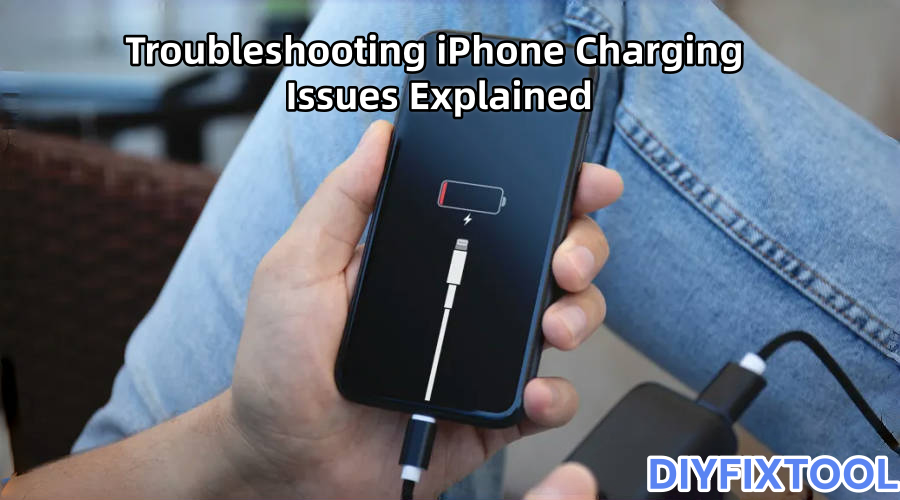
One of the most well-known cellphones in the world, the iPhone leads the market in terms of ecosystem, design, and performance. But in everyday use, even the most sophisticated gadgets can run into one of the most common yet annoying problems: a charging difficulty. Thus, Phonefix will offer a thorough examination of iPhone charging problems in this post. You can get helpful advice here whether you're a computer enthusiast or a phone repair specialist.

I. Common Symptoms of Charging Issues
Before officially starting a repair, it's important to understand the common symptoms of charging issues, including but not limited to:
· Nothing happens when plugged in, and the screen doesn't light up;
· The battery level is stuck at a certain percentage, such as 80%;
· Intermittent charging;
· Slow charging or a message stating "This accessory may not be supported";
· Unable to wirelessly charge;
· The iPhone battery is in good health, but it won't charge.
The root causes behind these symptoms vary, requiring a step-by-step analysis to determine the appropriate solution.
II. Common Causes and Basic Troubleshooting
1. Charging Accessory Failure
Troubleshooting Method:
· Cross-test with a known-good, genuine or MFi-certified iPhone charger and cable;
· Test the existing charger with other devices to confirm accessory damage.
Recommended Actions:
· Avoid using cheap, off-brand cables to avoid overheating and short circuits;
· Inspect the cable ends for broken, torn, or exposed wires;
· Prefer the Apple authentic 20W PD Charger Adapter + Type-C to Lightning cable combination.

2. Charging Port Blockage or Oxidation
Symptoms:
· The plug cannot be fully inserted;
· No response after insertion or repeated adjustments are required;
· Intermittent charging with a connection failure message.
Repair steps:
· Turn off the device and unplug the charging cable;
· Use a blower to blow air into the Lightning or Type-C port to remove dust;
· Use a light source and a magnifying glass to inspect the port to check for lint, dust, iron filings, or residual liquid;
· Use a wooden toothpick to gently remove foreign objects;
· Use a dry brush to clean around the port; do not scrape with metal objects;
· If the iPhone charging port shows obvious signs of green oxidation, the contact points are damp and require further cleaning or replacement.
3. Charging problems caused by the system or software
Symptoms:
· No response after plugging in, but normal after upgrading the system version;
· Automatically stops at 80%;
· Displays "Charging" when plugged in, but the battery level does not increase.
Solution:
a. Restart or force restart the device:
· iPhone 8 and above: Quickly press Volume Up → Volume Down → Press and hold the Side button until the Apple logo appears;
· iPhone 7 series: Simultaneously press and hold the Volume Down and Power buttons;
· iPhone 6s and earlier: Press and hold the Home and Power buttons.

b. Upgrade/Restore the system:
· Go to [Settings > General > Software Update] and install the latest version;
· If the problem persists, enter recovery mode using iTunes/Finder and re-flash the device;
· If re-flash still doesn't work, the system has been largely ruled out and you can move on to hardware troubleshooting.
c. Turn off Optimized Battery Charging:
· Path: [Settings > Battery > Battery Health & Charging] → Turn off "Optimized Battery Charging" to prevent charging from stopping at 80%.
III. Hands-On Repair: Detailed Hardware Repair Guide
If you've eliminated all external accessories and software possibilities and still can't resolve the issue, you'll need to disassemble the device and perform component-level inspection.
1. Common Hardware Failures and Repair Solutions
a. Damaged Charging Port
Repair Solution
· First, ensure the iPhone is completely unplugged.
· Remove the two Pentalobe screws on the bottom.
· Use a suction cup and a spudger to gently lift the display.
· Remove the speaker and Taptic Engine.
· Remove the charging port module (the integrated flexible cable connecting it to the logic board).
· Replace it with a new charging connector module.
· Reinstall and test to see if charging is working properly.
Note:
· The replacement charging connector cable must match the original model.
· The charging connector solder points are delicate, so be patient when working with it to avoid damaging the pads on the logic board.

b. Battery Failure
Symptom: Battery health is below 80%, or it won't charge.
Repair Steps:
· Open the device and disconnect the battery as described above;
· Use a heating pad or Hot Air Station to soften the adhesive securing the battery;
· Gently pull out the adhesive or pry the battery with a plastic card;
· Replace the battery with a high-quality one and reconnect the ribbon cable;
· Close the display and test whether it charges and boots up.
Recommendations:
· Choose a battery with comparable performance to the original (with chip identification);
· After replacing the battery, use a third-party battery calibration tool to perform a cycle initialization.
c. Mainboard Charging IC Failure
Symptom: Charging still fails after replacing the battery and docking station; the ammeter shows no reading.
Professional Procedure:
· Use a digital ammeter to connect the battery and check whether the voltage is transmitted to the mainboard;
· Remove the mainboard and use a HD trinocular microscope to check whether the U2 charging IC or Tristar chip (U1700 on some models) is burnt out;
· Use a heat gun and a precision soldering iron to solder the chip;
· After replacement, test the voltage and current to confirm the repair is complete.
Notes:
· This operation requires advanced soldering skills and is not recommended for non-professional technicians.
· Use appropriate flux and solder mask to protect surrounding iPhone components.
· After replacing the chip, be sure to re-clean the logic board and perform a pressure test.

IV. Wireless Charging Issues
If your iPhone supports wireless charging (iPhone 8 and above) but isn't charging;
Checkpoints:
· Is it using a MagSafe-certified charger?
· Is there a thick or metal case blocking the magnetic connection?
· Disassemble the phone to check if the iPhone wireless charging coil is desoldering or damaged?
· Replace the wireless charging module and test.
V. Preventative Measures and User Recommendations
To avoid future charging issues, good user habits are crucial:
· Avoid using low-quality third-party chargers;
· Clean the charging port regularly;
· Avoid frequent use of power-draining apps while charging;
· Keeping the battery charge between 30% and 80% is optimal for battery life;
· Avoid extreme temperatures (high temperatures cause battery expansion, while low temperatures limit charging efficiency);
· Detect any problems as soon as they occur to prevent minor faults from becoming logic board damage.
There are many reasons why your iPhone may not charge, ranging from simple cable issues to more complex hardware problems. By following the troubleshooting steps outlined in this guide, you can self-diagnose and often resolve the issue yourself using phone repair tools purchased from China Phonefix. However, if the problem persists, it may be time to seek professional support to restore your iPhone to full functionality.