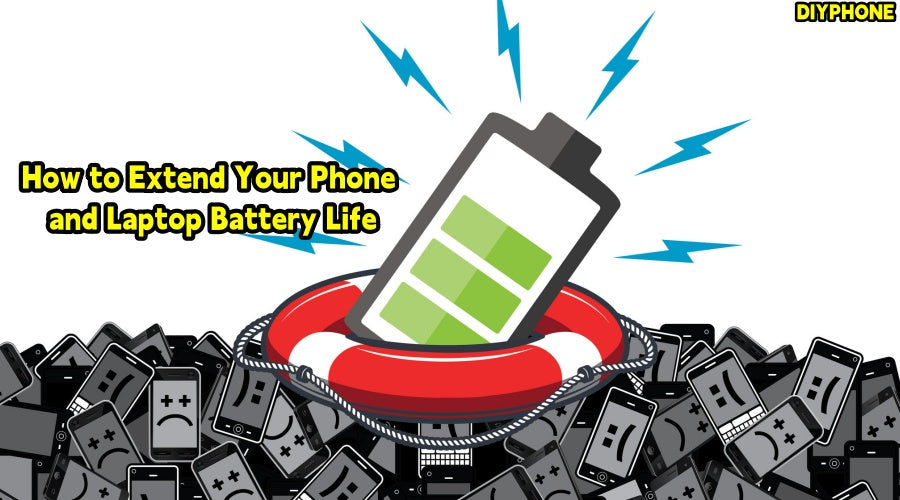
As electronic devices such as smartphones and laptops are used over time, their battery life tends to gradually decline. Although battery aging is inevitable, there are ways to slow down battery capacity degradation and extend the overall lifespan of your devices. Whether you use a smartphone or a laptop, following these practical tips shared by PHONEFIX can help maintain your battery's health.

I. Check Battery Health
Understanding the current condition of your battery is the first step toward extending its lifespan. Regular checks can help us identify issues such as declining battery capacity and abnormal power consumption in a timely manner.
1. Check Battery Health
The way to check battery status varies depending on the device:
· iPhone: Go to "Settings" > "Battery" > "Battery Health & Charging" to check the maximum capacity.
· Android: Go to "Settings" > "Battery". Some brands also provide dedicated battery diagnostic features.
· Windows laptops: You can generate a battery report through the system to check the battery's design capacity and current capacity.
· MacBook: Go to "System Settings" > "Battery" or check the battery status in System Information.
Generally, when the maximum battery capacity drops below 80%, it indicates that the battery has experienced noticeable wear. If this is accompanied by shorter battery life or unexpected shutdowns, you may consider having the battery professionally inspected.
2. Watch for Unusual Battery Drain
If the battery level drops rapidly while the device is idle, the device becomes unusually hot during charging, or the battery percentage suddenly fluctuates, you should promptly check background applications, system operations, and battery status.
3. Optimize Device Settings
Adjusting system settings appropriately can reduce unnecessary power consumption and extend battery life without significantly affecting the user experience.
· Lower Screen Brightness
The screen is one of the major sources of power consumption. During daily use, you can reduce the brightness appropriately, enable automatic brightness adjustment, and shorten the auto-lock time to reduce power loss caused by the screen remaining on for extended periods.
· Enable Power-Saving Mode
Smartphones can enable Low Power Mode, while Windows and macOS laptops also offer corresponding power-saving features. These modes typically limit background activities, reduce automatic synchronization, and adjust system performance. They are suitable when the battery is running low or when charging is not immediately available.
· Manage Background Apps
Some applications may continue refreshing data or accessing location information even when they are not open. It is recommended to regularly check battery usage records and restrict background activities of apps that consume excessive power. Meanwhile, turn off features such as Bluetooth and personal hotspots when they are not needed to reduce unnecessary energy consumption.
· Reduce Notifications
Frequent notifications can wake up the screen and may also increase the burden of background operations. You can turn off unimportant notifications from games, shopping apps, and social media platforms while keeping only essential alerts.

II. Maintain Your Battery Through Daily Care
In addition to system settings, the usage environment and device operating habits can also affect battery health.
1. Avoid Extreme Temperatures
High temperatures are an important factor that accelerates the aging of lithium-ion batteries, including those used in iPhones. Avoid leaving devices in direct sunlight or inside hot vehicles for extended periods. Ensure proper ventilation when charging as well. Extremely cold environments may also affect battery performance, so try to keep your device operating at a suitable temperature.
2. Reduce High-Load Operations
Playing demanding games, rendering videos, or running multiple resource-intensive programs for extended periods can increase the workload on the processor and graphics card while generating more heat. It is recommended to adjust performance modes according to actual needs and avoid keeping the device at high temperatures for extended periods.
3. Update the System Regularly
Operating system updates usually include security fixes and performance optimizations, and may also improve power management mechanisms. Installing stable system updates in a timely manner can help reduce additional power consumption caused by software abnormalities.
4. Develop Good Charging Habits
Proper charging methods can reduce the amount of time a battery spends at extremely high or low charge levels, helping to slow down battery aging to some extent.
· Avoid Frequent Complete Discharges
It is not recommended to regularly wait until the battery reaches 0% before charging. During daily use, you can recharge the device when the battery level drops to around 20% to prevent the battery from remaining in a deeply discharged state for extended periods.
· Set a Reasonable Charging Limit
If your device supports a charging limit setting, you can adjust the limit to around 80% to reduce the amount of time the battery remains fully charged. If you need to go out for an extended period or use the device continuously, charging it to 100% is also fine. There is no need to excessively restrict normal usage.
· Choose Reliable Charging Accessories
Prioritize using original chargers or Certified Fast Chargers that comply with your device's charging protocols. Avoid using chargers and data cables of unreliable quality, and regularly check accessories for damage, loose connections, or other issues.
· Pay Attention to Overnight Charging
Modern devices usually have charging protection mechanisms, but remaining at a high charge level for extended periods may still increase the burden on the battery. It is recommended to enable Optimized Battery Charging or Smart Charging features while also preventing the device from overheating during charging.

III. Regular Monitoring and Long-Term Maintenance
Battery maintenance is not a one-time task. Developing a habit of regular inspections is essential for identifying potential problems in a timely manner.
1. Check Battery Status Regularly
It is recommended to check the battery health, maximum capacity, and cycle count periodically and compare them with previous records. If you notice that the capacity continues to decline, you can further investigate your usage habits and device operating conditions.
2. Address Abnormal Issues Promptly
If your device experiences rapid battery drain, charging abnormalities, or frequent automatic shutdowns, check background applications, system settings, and charging accessories. If the problem persists, it is recommended to contact professional repair personnel for an inspection. If the battery becomes swollen, leaks, or shows obvious deformation, stop using and charging the device immediately and have it handled by professionals.
3. Store Devices Properly When Not in Use for Extended Periods
If you plan to leave your device unused for an extended period, it is recommended to keep the battery level at around 50%, turn off the device, and store it in a cool, dry place. High temperatures are a major factor that accelerates the aging of lithium-ion batteries, including iPhone Batteries. Therefore, avoid direct sunlight and extreme temperatures. You should also check the battery level periodically during storage to prevent excessive discharge caused by gradual self-discharge.
4. Frequently Asked Questions
· What Battery Level Is Best to Maintain?
For daily use, you can try to keep the battery level between 20% and 80% to reduce frequent deep discharges and prolonged periods at full charge. However, this is not a strict requirement. Charging to 100% occasionally will not immediately damage the battery.
· Can I Charge My Phone Overnight?
Yes. Modern devices usually have charging protection features. It is recommended to enable optimized charging and ensure proper ventilation and heat dissipation in the charging environment.
· Does Wireless Charging Damage the Battery?
Wireless charging itself does not directly damage the battery, but some wireless charging methods may generate more heat. Using compliant equipment and ensuring proper heat dissipation is sufficient.
Conclusion
The key to extending the battery lifespan of smartphones and laptops lies in developing good usage and charging habits. Regularly checking battery health, optimizing system settings, controlling device temperature, choosing reliable charging accessories, and reasonably managing charging levels can all help slow down battery aging. Although battery wear cannot be completely avoided, proper maintenance can help devices maintain good battery performance for a longer period.