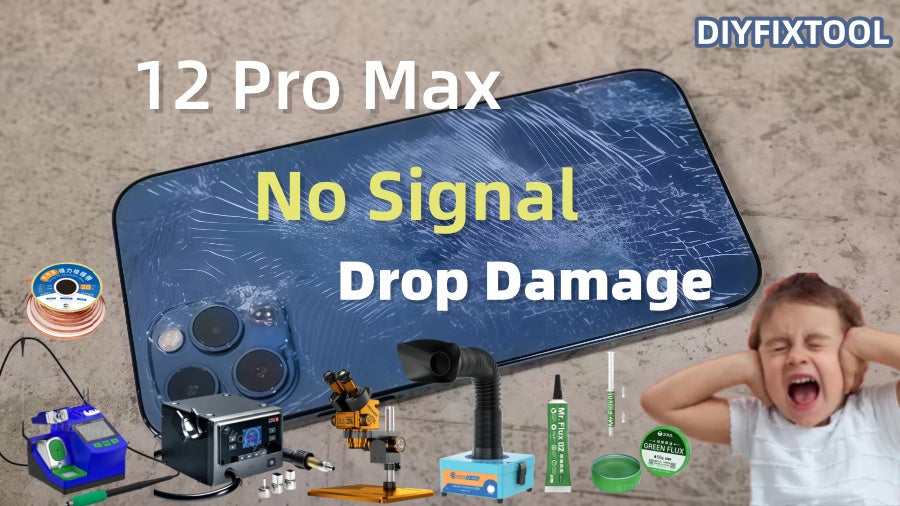
With its exceptional performance and beautiful design, Apple's flagship phone, the iPhone 12 Pro Max, which debuted in 2020, has drawn the interest of Apple enthusiasts. The iPhone 12 Pro Max isn't flawless, though, like any other gadget. Signal loss and baseband failure are among the issues that may arise, particularly if it is dropped by accident. Phonefix will offer comprehensive repair instructions in this post to assist you in regaining baseband functionality and a strong signal for your iPhone 12 Pro Max.

I. Problem Analysis
If your iPhone 12 Pro Max experiences no signal or no baseband after a drop, it's usually due to physical damage to the iPhone's internal RF components or baseband circuitry. The baseband is the core component responsible for wireless communication in an iPhone. Once damaged, the iPhone cannot effectively connect to the mobile network, resulting in no signal or a persistent "Searching" display. If you encounter this problem, first determine if it's a baseband issue. Common symptoms include:
· The signal bar displays "No Service" or "Searching";
· The "Modem Firmware" section in Settings displays blank;
· Even after inserting a SIM card, you still can't connect to the cellular network.
If these symptoms occur, it's likely that the baseband section of the motherboard has been damaged by a drop.
II. Basic Troubleshooting Steps
Before beginning any repairs, try these simple troubleshooting steps to rule out common software or settings issues:
1. Toggle Airplane Mode
Turn on Airplane mode for about 15 seconds, then turn it off. This will reset the phone's cellular connection.
2. Restart the iPhone
Restarting the phone clears possible system issues. Press and hold the power button, slide to turn off, then press and hold the power button to turn the phone back on.
3. Reinsert the SIM Card
After turning off the phone, use a SIM card removal tool or a paperclip to gently remove the SIM card tray. Check that the SIM card is clean and free of damage or dirt, then reinsert the SIM card tray and ensure the slot is fully seated.
Note: If the problem persists after these steps, it's likely a hardware failure, particularly damage to the baseband caused by a drop.

III. Repair Steps: Baseband Repair
1. Disassembly and Delamination of the Logic Board
First, disassemble the iPhone 12 Pro Max. Before disassembling, ensure you have the appropriate tools, including:
· Anti-static wrist strap;
· Suction cup tool;
· Disassembly tool kit;
· Soldering iron and solder wire;
· Hot air gun or rework station;
Disassembly Steps:
· Turn off and disconnect the iPhone: Before disassembling, be sure to turn off and disconnect the power cord to avoid electric shock or damage to other internal components.
· Removing the back cover: Use the suction cup tool to gently lift the edges of the back cover. Insert a plastic opening tool and gently pry the back cover open along the sides of the phone.
· Removing Internal Screws and Screen: Remove the internal screws and the screws securing the logic board. Next, carefully separate the screen from the motherboard, being careful not to use excessive force to avoid damaging the screen cables.
· Separating the Motherboard: Use a hot air gun to heat the iPhone motherboard to loosen the adhesive connecting it to the baseboard. After heating, gently separate the motherboard from the other components with a tool.

2. Inspecting the Motherboard and Baseband Circuitry
After successfully removing the motherboard, carefully inspect the RF board and baseband circuitry on the motherboard. Often, solder joints in the baseband power supply section can become loose or broken due to drops or stress.
· Inspecting the RF board:
By inspecting the motherboard's RF board, you may find loose solder joints or obvious circuit damage. Such damage can cause the baseband to malfunction, resulting in a loss of signal.
· Checking the Repair Diagram:
Open the iPhone Schematic Diagrams and look for loose solder joints and circuitry. The baseband power supply circuitry is typically more visible; if a solder joint breaks, the iPhone will be unable to connect to the cellular network.
3. Repairing Solder Joints and Circuits
· Reconnecting Loose Solder Joints:
Use a soldering iron and tin wire to reconnect loose solder joints. Heat and gently press the joints to ensure a secure connection. Lead-free solder is recommended to minimize the risk of circuit damage.
· Flying Lead Repair:
For severely damaged circuits, flying lead repair can be used. Use wire to connect the broken circuits to ensure proper current flow.
· Applying Insulating Green Oil:
To prevent short circuits, apply a layer of insulating green oil to the repaired circuits to help protect them from the environment.

4. Reassembly and Testing
· Reassembling the Motherboard:
After repairing the baseband circuit, reattach the motherboard to the RF board. Use a Soldering Iron Tip to heat the solder joints to ensure a tight connection.
· Assembling the Phone:
Reinstall the repaired motherboard into the phone, securing the screws and other components to ensure that no internal components are loose.
· Test iPhone functions:
After the installation is complete, power on the phone and insert a SIM card to test whether the phone's signal is restored. Open Settings, go to the "Modem Firmware" page, and confirm that the firmware version is displayed. If everything is normal, the iPhone's signal should be restored and the "Searching" issue should not appear.
· Check other functions:
Finally, test other phone functions such as Wi-Fi, Bluetooth, and the camera to ensure they are functioning properly. If all functions are functioning correctly, the repair is complete.
The detailed repair methods above should be followed to resolve the iPhone 12 Pro Max baseband failure issue caused by a drop. The entire bottom circuit board might need to be replaced if the damage from the drop is more extensive. In this case, contacting a qualified repair company is recommended. Touching the motherboard wrongly could exacerbate the problem because it is difficult to solve. I hope this post will assist you in getting your iPhone 12 Pro Max back to its original condition by successfully resolving baseband failure and signal loss issues!