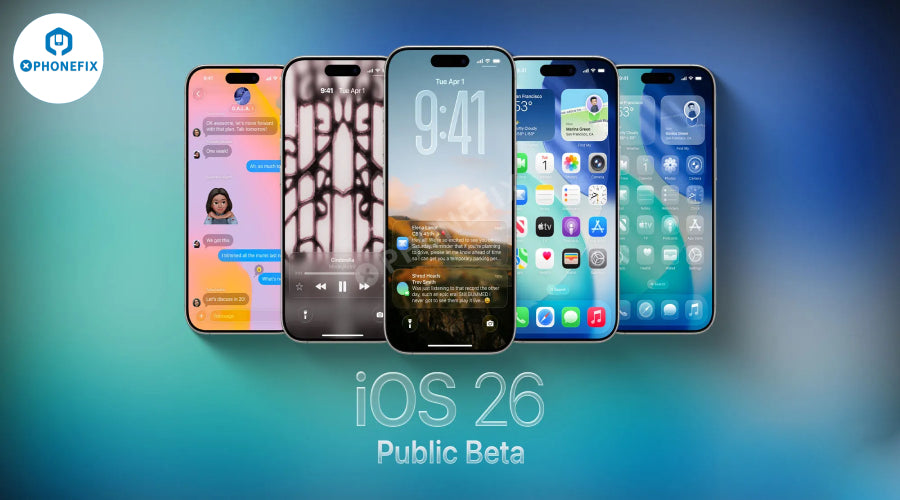
Apple iOS 26 public beta has been officially released, and iPhone users around the world can experience a series of latest features including Liquid Glass design and upgraded messaging applications. So, how can you be the first to try this highly anticipated system? China Phonefix will give you detailed answers.
1. Join Apple Beta Software Program:
Open Safari browser on your iPhone and visit the official website of Apple Beta Software Program: beta.apple.com. Log in with your Apple ID. If you are participating in the test for the first time, please click the "Register" button on the page and follow the prompts to read and accept Apple's Beta Software Agreement. After registration is complete, log in to your account, click the "iOS" option at the top of the page, enter the device registration process, and follow the instructions to add your iPhone to the Beta testing program.

2. Register your device:
On the dashboard page of the iOS Beta Program, find the "Get Started" section and click "Register Your iOS Device". The system will ask you to log in and confirm whether to accept the Beta agreement, and complete the registration according to the prompts. After completing the registration, Apple will automatically push the Beta update to your "Settings". Just make sure your Apple ID is associated with the Beta program, and the system will automatically provide you with the latest beta updates. At this time, you can see the available Beta updates on the "Settings" > "General" > "Software Update" page, click "Download and Install" to upgrade and experience the latest features.
3. Enable Beta updates on iPhone:
Open the "Settings" app on your iPhone and go to "General" > "Software Update". On the software update page, click "Beta Updates", and select "iOS 26 Public Beta" from the list. Click "Download and Install" and the system will start downloading the update file. Please make sure the device is connected to Wi-Fi and has enough power or connected to a power source. After the download is complete, the device will prompt you to install, and you can choose to install it now or later. During the installation process, the device will automatically restart. Do not operate the phone and wait patiently for the update to complete. After the installation is complete, your iPhone will run the iOS 26 public beta. Follow the iPhone screen prompts to complete the initial setup.

4. Download and install the iOS 26 public beta:
After returning to the "Settings" > "General" > "Software Update" page, you will see the update prompt for "iOS 26 Public Beta". Click "Download and Install" and the system will start downloading the update package. The download speed depends on your network conditions. After the download is complete, the system will automatically prompt you to prepare for installation. You can choose to install it now or later. During the installation process, the device will automatically restart. Please make sure that the iPhone is connected to a power supply and connected to the Internet to avoid installation failure due to low power or network interruption. After the installation is complete, the device will start the new system and you can complete the initial setup according to the on-screen prompts.

Post-installation suggestions:
iOS 26 public beta has a built-in application called "Feedback Assistant". If you encounter any problems or bugs during use, please submit feedback to Apple through the app to help them improve the final version. In addition, Apple will regularly release new Beta updates to fix problems and optimize functions. It is recommended that you check "Software Update" frequently and install the latest version in time.
Notes:
1. This is beta software:
Public Beta indicates that the software is not the final, stable release. You may encounter bugs, performance issues, shorter iPhone battery life, and occasional app crashes.
2. Don't install on your main device:
It is strongly recommended not to install the public beta on your primary iPhone. If possible, use a secondary device to avoid disruptions to your daily use.
3. Be sure to back up your device:
Before installing any beta software, make sure to fully back up your iPhone using iCloud, Finder (Mac), or iTunes (Windows). This is a crucial step in case you need to restore to a previous stable version.
4. How to back up to a computer:
Connect your iPhone to a Mac or PC. In Finder (Mac) or iTunes (Windows), select your device. Choose “Back up all data on iPhone to this Mac/computer,” and it's recommended to check “Encrypt local backup” to include information such as health data and passwords. Click “Back Up Now.” After the backup completes, right-click the backup and select “Archive” to prevent it from being overwritten by future backups.
5. Check device compatibility:
iOS 26 is not compatible with all iPhone models. Generally, it requires at least an A13 Bionic chip, which means only iPhone 11 and newer models are supported. To experience Apple Intelligence (AI) features, you’ll need an iPhone 15 Pro, iPhone 15 Pro Max, or any iPhone 16 series model.

I believe that through this article, you have a clear understanding of the installation process of the iOS 26 public beta. If you are a DIY enthusiast who likes to do it yourself, you may wish to visit the diyfixtool official website, where there are abundant repair tools and electronic iPhone accessories resources to help you easily solve various electronic equipment problems and improve your repair skills.