
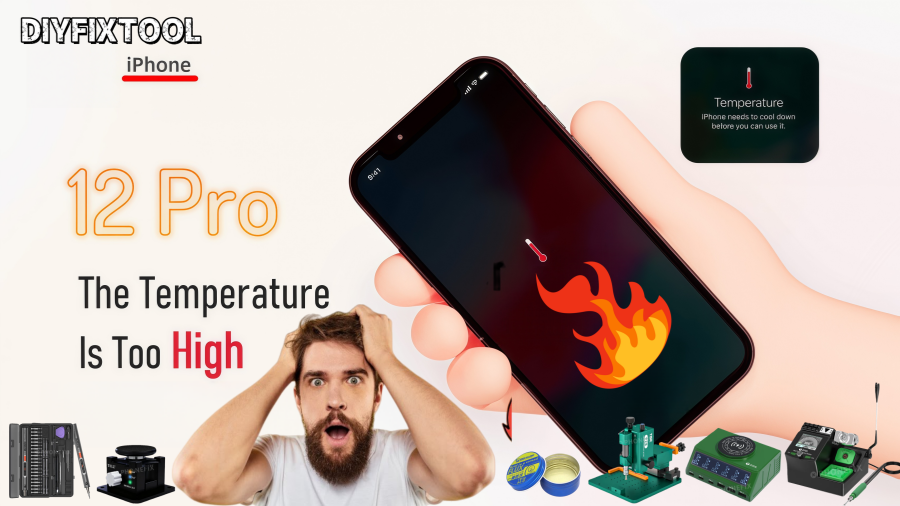
The iPhone 12 Pro is a strong and feature-rich smartphone. However, the device may have overheating problems with increased use and complicated operations. Especially when charging in an area blanketed by blankets, sofas, or other insulating materials, the device's temperature can rise significantly, causing the phone to fail to power on. This post from Phonefix discusses how to fix an iPhone 12 Pro that won't power on due to overheating.

I. Symptoms and Initial Inspection
【Model】 iPhone 12 Pro
【Symptoms】 The user reports that their iPhone 12 Pro suddenly fails to power on while charging. When connected via USB, the current is only 0.5A, and the battery voltage shows 0V. The iPhone motherboard voltage near the battery connector is 3.3V, and the current does not change after connecting the battery. Furthermore, the power area is noticeably hot, suggesting a possible problem with the power circuitry.
【Initial Diagnosis】 Based on the symptoms, the most likely cause is overheating leading to damage to some components in the motherboard or battery circuitry. When dealing with this type of problem, a thorough inspection is necessary first to determine if the issue originates from the battery, power circuitry, or other components.
II. Repair Steps
Step 1: Disassembly and Initial Inspection of the Motherboard
Tools:
· Anti-static gloves;
· Electronic screwdriver kit;
· Plastic pry bar;
· Suction cup tool;
· Anti-static mat;
First, ensure the iPhone's power is completely disconnected. Wear anti-static gloves to prevent static electricity from damaging sensitive components on the motherboard. Use the suction cup tool and pry bar to easily open the iPhone's casing. Carefully disconnect the screen and battery cables. Next, remove the battery and use an electronic screwdriver to remove the screws from the motherboard. After removing the motherboard, examine it under a microscope for obvious signs of burning or short circuits. From the initial inspection, if no signs of solder brittle or burning are visible on the motherboard, it can be determined that the overheating temperature did not reach extremely high levels, and the damage is relatively localized.
Step 2: Inspect Overheated Components
Tools:
· Solder iron;
· Rosin;
· Digital ammeter;
· Thermal imager;
Since some circuit components on the motherboard may fail due to overheating, use carton rosin (clean rosin) and heat the motherboard. Pay special attention to changes in heat-generating components near the motherboard while heating. Use an ammeter to monitor the current changes of each component. Through testing, it was found that the U4200 power chip in the iPhone 12 Pro was overheating. Further inspection revealed that the output voltage PP_VDD_BOOST of the U4200 chip was short-circuited. This may be due to excessive current caused by a damaged power circuit, leading to the failure of other circuit components.

Step 3: Troubleshoot the Power IC
Tools:
· Solder iron;
· Desoldering wick;
· Soldering iron oven;
For overheated and damaged power ICs, the outer casing of the power IC needs to be removed first. Carefully inspect the solder joints of the power IC to ensure there are no cold solder joints or short circuits. If damage is found, use desoldering wick to remove the old solder and resolder the power IC. If no obvious cold solder joints or burnt solder joints are found, the problem may be with the power IC itself. Try replacing the power IC and resoldering it to see if that resolves the issue.
Step 4: Inspect and Repair Damaged Capacitors
Tools:
· Soldering iron;
· Tweezers;
· Capacitor tester;
· Electronic components;
Further inspection revealed that capacitor C4200 on the motherboard was cracked, likely due to physical damage caused by overheating. Use a soldering station to heat the capacitor's ends and remove it. Then use a capacitor tester to check the capacitance value to confirm it is not completely damaged. After replacing the capacitor, resolder the ends, ensuring a firm and dry solder joint. Test the replaced capacitor to check if the current and voltage have returned to normal.
Step 5: Reset and Reassemble the Motherboard
Tools:
· Screwdriver kit;
· Plastic pry bar;
After repairing all components, reinstall the motherboard back into the device and reinstall the battery and screen as before. Ensure all connections and cables are secure. Then use a screwdriver to secure the motherboard and battery. Check that all screws are tightened and ensure the casing is completely closed.
Step 6: Power-On Test
After reassembly, plug in the charger and test the power-on function. If everything goes smoothly, the iPhone 12 Pro should power on normally and resume normal operation. Confirm the repair effectiveness by testing the battery voltage, charging current, and power supply voltage.
Through these steps, we successfully repaired the iPhone 12 Pro that was unable to power on due to overheating. During this repair process, we found that a damaged power IC and capacitors were the main causes of the device's inability to start. Overheating can cause physical damage to iPhone components, especially when the device is charged for extended periods at high temperatures.

III. How to Avoid Similar Problems?
1. Avoid Overheating Environments: Do not use or charge your iPhone in excessively high-temperature environments, such as inside a hot car, in direct sunlight, or under a blanket.
2. Choose the Appropriate Charging Method: Avoid using your iPhone for extended periods while charging. It is recommended to avoid heavy-load operations while charging, such as playing games or watching videos.
3. Clean Your Device Regularly: Regularly clean the iPhone's vents and casing to ensure good heat dissipation.
4. Use Original Chargers: Use genuine Apple chargers and cables. Avoid using substandard third-party accessories, as this helps ensure stable charging.
By using your iPhone correctly and maintaining it promptly, you can extend its lifespan and reduce the occurrence of overheating issues.
If your iPhone 12 Pro overheats or fails to power on, prompt repair and inspection are vital. The procedures above might help you check and correct hardware problems causing the device to fail to power on. Welcome to China Phonefix, where you can buy your special iPhone repair equipment to make repairs easier. With any luck, this repair guide will assist you in fixing the issue and getting your equipment back up and running. To prevent further harm from self-repair, it is advised that you get assistance from a professional technician if you lack the necessary repair skills.


