
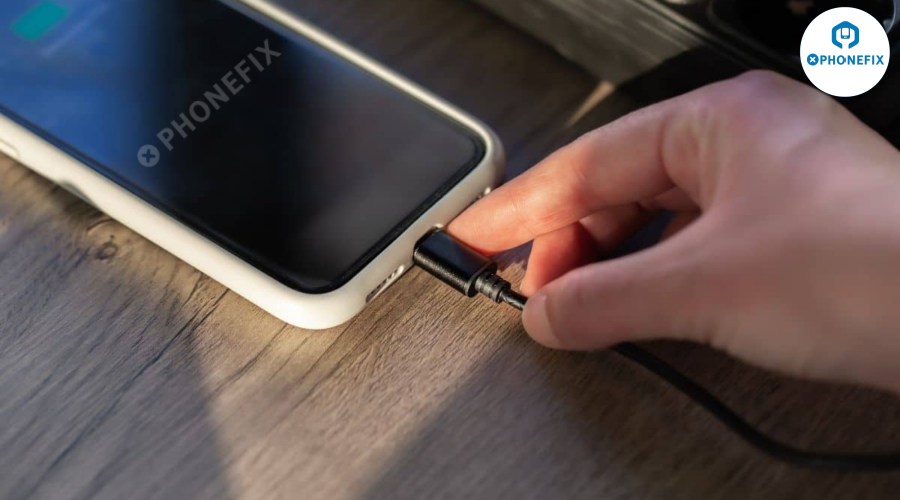
Is your iPhone not charging, or is it charging intermittently? You don’t necessarily need to panic or rush to a repair shop just yet. More often than not, the issue could be as simple as a dirty iPhone charging port, a faulty cable, or a minor software glitch. This DIY guide walks you through how to fix your iPhone charger at home, saving both time and money!

Why Your iPhone Might Not Be Charging Properly
There are a number of reasons why your iPhone might be having charging issues. From dust in the charging port to worn-out cables or battery health concerns, it’s important to diagnose the problem before taking more drastic measures.
Here’s a breakdown of potential causes:
Physical Issues:
Debris or Dirt in the Charging Port: Lint, dust, or other particles can block the connection, preventing your phone from charging.
Damaged Cable or Adapter: A frayed or faulty charging cable can lead to slow or inconsistent charging.
Loose or Worn Charging Port: If your charging cable doesn’t fit properly or falls out easily, the port might be damaged.
Software Issues:
Glitches or Bugs: Sometimes, an iOS update or minor software bug can stop your iPhone from recognizing the charger.
Battery Health: If your iPhone’s battery health is too low, it may struggle to charge, even with a DC Power Cables and adapter.
Other Issues:
Water Damage: Exposure to water can corrode internal components, including the charging port.
Incorrect Charging Accessories: Using non-Apple-certified chargers can interfere with your iPhone's charging process.
Step-by-Step Guide to Fix Your iPhone Charger
Before you rush to the nearest repair shop, try these easy, at-home fixes to get your iPhone charging again. You’d be surprised how simple the solution could be!
1. Power Off Your iPhone
Start by powering off your iPhone completely. This helps prevent any short circuits and ensures the internal components are protected while you clean or inspect the charging port.
2. Inspect the Charging Port
Grab a flashlight and look closely at your charging port. Are there any visible signs of dust, lint, or even damage? A clean charging port is key for proper charging, so if you notice debris, it’s time to clean it out.
3. Clean the Charging Port
Sometimes, dust and lint are the culprits. Use a wooden toothpick or a soft brush to gently remove debris from the charging port. Be careful not to push any particles deeper into the port.
You can also use Air Compressor Pump to blow out any loose debris. Make sure you hold the can at least a few inches away from the port to avoid moisture or excess force from damaging the components.
4. Test with Another Cable and Adapter
If your charging port looks clean, try using a different charger or iPhone Power Adapter. It’s possible that your charging cable or adapter is faulty. Test with a certified Apple cable and adapter, or one that’s known to work.
5. Restart Your iPhone
A simple restart can often fix software glitches that might be preventing your iPhone from recognizing the charger. Restart your phone, plug it back in, and check if charging resumes.
6. Check Battery Health
If the above steps don’t work, go to Settings > Battery > Battery Health & Charging to check the status of your battery. If the battery health is below 80%, your may need to iPhone battery replacement. Poor battery health can prevent charging even when the cable and port are fine.

7. Enable Optimized Battery Charging
To protect your battery and extend its lifespan, enable the Optimized Battery Charging feature by going to Settings > Battery > Battery Health & Charging. This feature helps prevent overcharging by learning your charging habits and slowing down the charge when the battery is nearly full.
8. Perform a Software Update
Sometimes, outdated software can cause charging issues. Make sure your iPhone is running the latest iOS version. Go to Settings > General > Software Update and install any available updates.
9. Factory Reset Your iPhone (as a Last Resort)
If none of the above solutions work, consider performing a factory reset. This can help resolve software-related charging issues. Just remember to back up your data before resetting your phone, as a factory reset erases all content.
When to Seek Professional Help
If the problem persists even after cleaning the port, switching cables, and trying the steps above, it might be time to seek professional help. Some signs that professional repair might be needed include:
-
Loose or Wobbly Port: If the charging cable doesn’t stay in place, the charging port might be physically damaged.
-
Visible Damage: Cracked plastic, bent pins, or corrosion inside the port are clear indicators of hardware failure.
-
Water Exposure: If your phone has been exposed to water, it could have internal corrosion that requires professional attention.
Visit a trusted technician or an Apple Store to get your charging port inspected and repaired.
Preventative Tips to Keep Your Charging Port in Good Shape
A little maintenance goes a long way in keeping your iPhone’s charging port free from issues. Here are a few tips:
-
Use a iPhone USB dust plug: These small accessories protect your charging port from dust and lint when not in use.

-
Store Your iPhone Properly: Avoid keeping your phone in pockets or bags filled with fabric that might shed lint.
-
Inspect Cables Regularly: Check for any frayed wires or damaged connectors that could wear down your port.
-
Clean Your Charging Port Monthly: A quick clean with a soft brush or compressed air can prevent buildup from affecting charging performance.
Final Thoughts
Dealing with an iPhone charging issue doesn’t have to be a major headache. Many charging problems stem from easily fixable issues. By following the DIY steps outlined above, you can often resolve the issue yourself without having to spend money on professional repairs. Phonefix advises buying from the official "DIYFIXTOOL" website in the event that an adapter fails due to internal or core components. The best course of action for efficiency and safety is to use professional, high-quality components.


