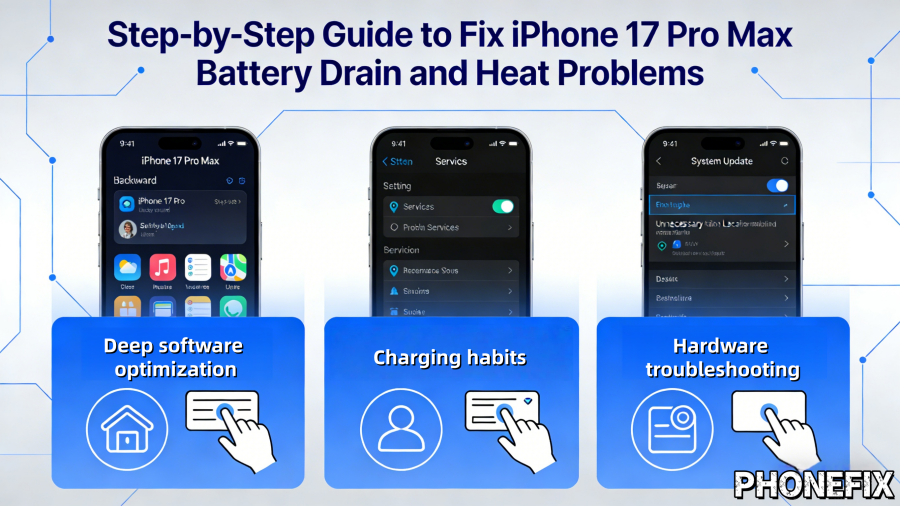
As the pinnacle of Apple's iPhone series, the iPhone 17 Pro Max boasts a powerful A19 Pro chip and a stunning display, but high performance often comes with high power consumption. If you find your device overheating abnormally, draining battery extremely quickly, or even becoming hot to the touch during light use, this is usually caused by software conflicts, improper settings, or hardware aging. Phonefix provides a comprehensive solution, from software optimization and routine maintenance to advanced hardware troubleshooting.
I. First Stage: Immediate Response and Deep Software Optimization
Most overheating and power consumption issues stem from uncontrolled background processes or system redundancy. Before disassembling the device, please perform the following troubleshooting steps:
1. Force Restart
This is the most effective way to clear system cache and terminate "frozen" processes.
· Steps: Quickly press the volume up button once, quickly press the volume down button once, and finally press and hold the side power button until the white Apple logo appears on the iPhone screen, then release.
· Principle: A forced restart cuts off hardware power and reinitializes the software environment, resolving CPU overheating caused by code loops.

2. Background Activity and Location Management
· Background App Refresh: Go to "Settings" > "General" > "Background App Refresh," and it's recommended to select "Off" or only enable it for essential apps.
· Location Service Optimization: Go to "Settings" > "Privacy & Security" > "Location Services." Change the permissions for most apps to "While Using," and disable location services for apps that don't need them.
· Tool Tip: No additional tools are needed; simply use the system menu for logical filtering.
3. Display and Brightness Adjustment
The iPhone 17 Pro Max's ProMotion screen is a major power consumer.
· Enable Automatic Brightness: Go to "Settings" > "Accessibility" > "Display & Text Size," scroll to the bottom, and enable "Automatic Brightness Adjustment."
· Manage Always-On Display: Turn off the "Always On Display" feature, or disable the "Show Wallpaper" option, to reduce power consumption from the constantly on screen.
II. Second Stage: Environmental Factors and Charging Habits
The physical environment directly affects the chemical activity of lithium batteries.
1. Temperature Control and Heat Dissipation
· Removing the Case for Heat Dissipation: Always remove the protective case when playing demanding games or rendering videos. Many heavy, shockproof cases on the market can hinder heat dissipation.
· Avoid Direct Sunlight: Never place your phone on a car dashboard in direct sunlight. If your system prompts "iPhone needs cooling," immediately turn it off and move it to a shady place.
2. Standardized Charging
· Certified Equipment: Always use an original Apple adapter with a power rating of 30W or higher, or a MFi-certified USB-C charging cable. Inferior cables may cause unstable current, leading to overheating of the motherboard's power management chip.
· Avoid High-Temperature Operation: Never run high-load 3D games while charging. This causes the battery to undergo simultaneous charging and discharging chemical reactions, drastically shortening battery life.

III. Third Stage: Advanced Hardware Troubleshooting and Repair Steps
If the problem persists after a software reset (Settings > General > Transfer or Reset iPhone > Reset All Settings), a hardware-level fault needs to be considered.
1. Battery Health Check and Replacement
When the battery's maximum capacity is below 80%, or the system prompts "Repair," replacing the battery is the only solution.
a. Required Tools: P2 pentalobe screwdriver, suction cup, ultra-thin pry bar, tweezers, new battery adhesive.
b. Repair Process:
· Use the P2 pentalobe screwdriver to remove the two screws at the bottom.
· Carefully cut the waterproof adhesive along the edge of the screen using the suction cup and pry bar. Note that the iPhone 17 Pro Max screen flex cable is on the side; open it like flipping a book to the right.
· Remove the battery connector pressure plate screws and disconnect the battery flex cable.
· Pull out the easy-pull adhesive at the bottom of the battery. If broken, lubricate the bottom of the battery with a small amount of isopropyl alcohol. Never use sharp metal tools to pry the battery to avoid fire.
· Replace the battery and reseal the waterproof sealant.
2. Cleaning and Inspection of the Charging Port (USB-C Module)
Foreign objects or liquid residue inside the port can cause micro-short circuits, resulting in silent power consumption.
· Tools: Insulated fine needle, compressed air canister, isopropyl alcohol.
· Instructions: With the phone powered off, gently remove lint or dust deep within the port using a fine needle, then blow it clean with compressed air. If the port pins show signs of blackening (corrosion), the entire bottom connector cable module needs to be replaced.
3. Motherboard Chip-Level Fault
If "standby power loss" or "localized abnormal heat" persists after battery replacement, it is usually due to damage to the power management chip (PMIC) or USB control chip (such as the Kraken chip) on the motherboard.
· Symptoms: Even when the phone is not in use, the battery will lose 5%-10% of its charge within half an hour.
· Repair Method: This requires using a DC regulated power supply connected to the motherboard to observe current fluctuations. If leakage is detected, the heat-generating components should be located under a microscope using a thermal imager, and then repaired using a hot air gun and soldering iron.

IV. Maintenance Recommendations
Rapid battery drain and overheating issues on the iPhone 17 Pro Max are usually caused by software settings, application malfunctions, hardware failures, or usage habits. Following this guide step-by step can effectively pinpoint the cause of the problem and take appropriate measures:
· Prioritize software optimization and basic settings adjustments.
· Establish good charging and usage habits, avoiding excessive load and high-temperature environments.
· Regularly update the system and applications to prevent software vulnerabilities from causing abnormal power consumption.
· Inspect the battery health, charging port, and motherboard chips; replace parts or send for professional repair if necessary.
Tips: Following these steps will improve your iPhone 17 Pro Max’s battery life and reduce overheating. For long-term care, prioritize battery health and system optimization, and consult professionals for any hardware issues.
Whether you're a mobile phone repair novice or an experienced professional technician, having the right tools is key to a successful repair. Welcome to China Phonefix, where we offer a full range of professional repair tools, original parts, and high-quality accessories to make your iPhone, iPad, or other smart device repairs more efficient and safer. Shop now to enhance your repair experience and make every operation feel like a pro's!