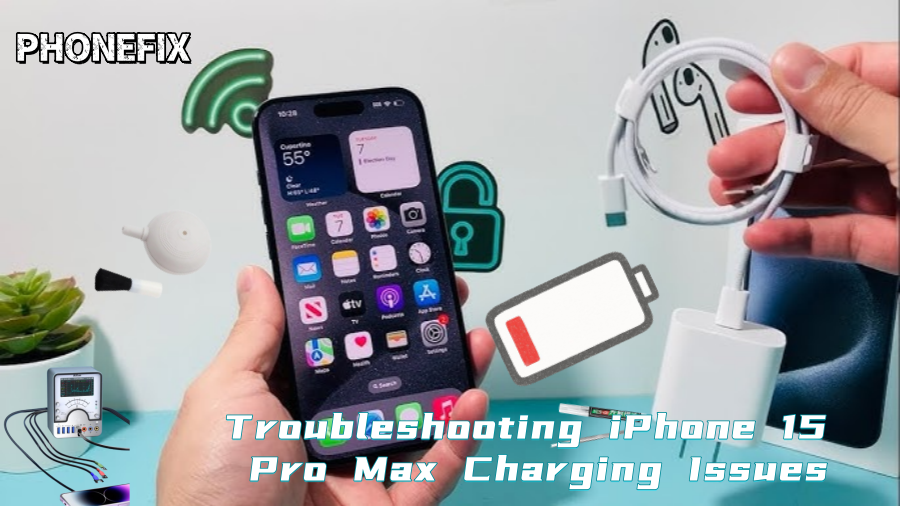
Despite being a high-end smartphone, the iPhone 15 Pro Max has a number of charging problems. These include excessively slow charging speeds, the battery not charging, or the screen not responding after plugging in the charger. Most consumers may feel perplexed and unclear of how to fix these issues. Many problems can actually be resolved with a few easy steps before visiting an Apple Store or service facility. You can troubleshoot and resolve iPhone 15 Pro Max charging issues on your own with the aid of this article from Phonefix.

I. Common Causes and Initial Checks
Before starting any repairs, it's crucial to understand the common causes of charging problems. Typically, the main reasons why an iPhone 15 Pro Max won't charge include:
1. Charging accessory issues: Damaged or faulty iPhone charging cable, power adapter, or outlet.
2. Dirty or oxidized charging port: Dust, debris, or oxide buildup inside the charging port can cause poor connection.
3. Software issues: iOS system malfunctions or abnormal battery management software can cause charging to fail.
4. Hardware Issues: Damaged battery, damaged charging port, or internal connection problems.
Before attempting repairs, start with some simple troubleshooting steps to avoid unnecessary trouble.
Step 1: Check Charging Accessories
One of the most common problems is a damaged charger, charging cable, or power adapter. You can check and troubleshoot these accessories by following these steps:
1. Check the charging cable: Inspect the USB-C cable for wear, breaks, or bends. Check the plug for bent pins, or for black spots or discoloration on the contacts. If you find obvious damage, try replacing the charging cable.
2. Check the power adapter: Ensure the power adapter is not physically damaged or overheating. It is recommended to use an Apple-authorized charger, especially an adapter that supports 20W or higher fast charging.
3. Try different power outlets: Plug the charger into a known working outlet to rule out problems with the power outlet itself.
4. Use other accessories: If possible, use a different original charging cable and adapter to ensure the problem is not with the accessories.
Step 2: Clean the Charging Port
Over time, dust, lint, or other debris may accumulate inside the iPhone charging port, leading to poor charging connections and even affecting normal charging. Here are the steps to clean the charging port:
1. Turn off your iPhone: Before cleaning the charging port, turn off your phone to ensure safety.
2. Choose an appropriate tool: Use a soft, non-metallic tool (such as a wooden or plastic toothpick) to gently scrape away dust and debris from inside the port. Avoid using metal tools to prevent scratching or damaging the port.
3. Blow away dust: Gently blow into the charging port using a can of compressed air to remove loose dust and debris. Ensure the can of compressed air is held upright to prevent coolant from spraying out.
4. Avoid using liquid cleaning: Avoid using water or cleaning agents, as liquids may enter the port, causing corrosion or short circuits.
After completing these steps, try plugging in the charger again to see if the problem is resolved.

Step 3: Force Restart Your iPhone
If the charging accessory and port are not the problem, you can try restarting the device. A force restart of the iPhone can resolve charging issues caused by software malfunctions. Follow these steps:
1. Press and quickly release the Volume Up button.
2. Press and quickly release the Volume Down button.
3. Press and hold the Side button until you see the Apple logo appear, then release the button.
A force restart will reload the system, potentially resolving charging issues caused by software glitches.
Step 4: Check Battery Health and Software Settings
If your iPhone still won't charge properly, it may be due to software configuration or battery health issues. Check and adjust using the following steps:
1. Update iOS: Go to Settings > General > Software Update to see if any updates are available. If updates are available, make sure to update to the latest version. Updated systems may fix some issues affecting battery management and charging.
2. Manage Charging Optimization: iPhone's built-in Battery Optimization feature may limit charging to extend battery life. Go to Settings > Battery > Battery Health & Charging to check if Charging Optimization is enabled. You can temporarily disable this feature to see if it resolves the charging issue.
3. Check Battery Health: Check the battery's maximum capacity in Settings > Battery > Battery Health. If the battery health is below 80%, it may mean the battery is aging and needs replacement.
Step 5: Check for Liquid Damage
If your iPhone 15 Pro Max has recently been exposed to water or a humid environment, liquid may have entered the charging port or other iPhone components, causing charging problems. In this case, follow these steps:
1. Unplug the charger: Immediately unplug the charger to prevent further moisture from seeping into the device.
2. Invert and tap the iPhone: With the iPhone charging port facing down, gently tap the phone to help expel any remaining moisture.
3. Allow to air dry: Place the iPhone in a well-ventilated area and let it air dry naturally for at least 30 minutes.
4. Avoid using heating devices: Do not place the iPhone near heat sources (such as ovens, microwaves, etc.), as this may damage internal components.

Step 6: When to Seek Professional Help
If the problem persists after following the above steps, it may be caused by a hardware malfunction. In the following situations, professional repair is recommended:
1. Loose or damaged charging port: If the charging port feels loose or the plug doesn't connect properly, it may indicate damage to internal components, requiring professional repair.
2. Battery malfunction: If the battery health is below 80%, or the battery cannot charge properly, it may need to be replaced.
3. Charger cannot detect the device: If the charger and data cable are intact, but the device still cannot charge, it may be a problem with the motherboard or internal connections.
In these cases, it is recommended to contact an Apple Authorized Service Provider or professional repair service for further diagnosis and repair.
When repairing an iPhone 15 Pro Max, using professional repair tools and parts is crucial. China Phonefix iPhone repair kits include high-quality replacement parts, detailed repair instructions, and precision tools. Whether you are a DIY enthusiast or a professional repairman, these tools can help you complete the repair smoothly and avoid problems caused by incompatible tools.