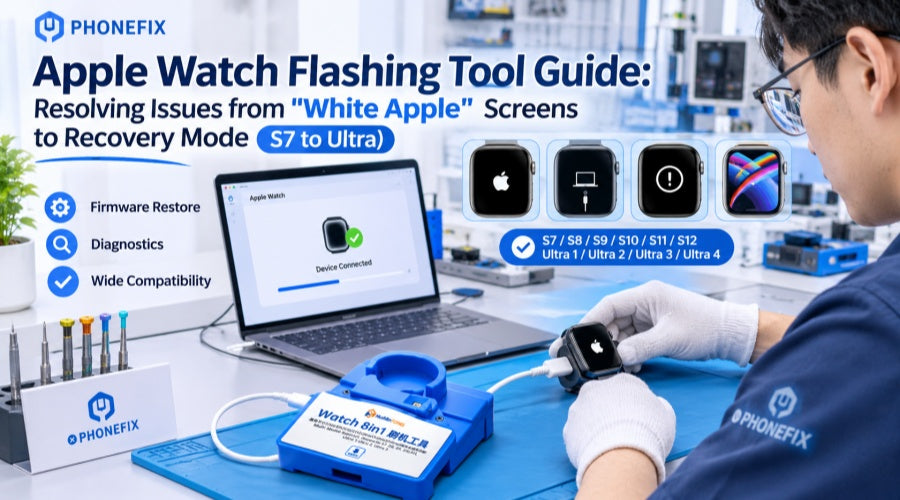
Apple Watch users may experience system crashes, software conflicts, white Apple logo issues, recovery loops, or exclamation mark errors. A dedicated Apple Watch flashing tool helps technicians diagnose and resolve these problems efficiently. In this Phonefix guide, we'll explore its key features, supported models, preparation requirements, and step-by-step flashing process to help restore system functionality and update firmware across compatible Apple Watch models.
I. Core Features and Supported Models
This Watch Restore Tool for S7-Ultra2 is designed not only to efficiently upgrade Apple Watch firmware—resolving various system errors and stubborn freezes—but also to perform comprehensive diagnostic checks when the watch is connected to a computer.
1. Supported Models
The tool currently supports a wide range of Apple Watch models, including the S7, S8, S9, S10, S11, S12, Ultra 1, Ultra 2, Ultra 3, and Ultra 4.

2. Diagnostic and Detection Capabilities
Once the device is connected to a computer, you can quickly access the following key data:
· Basic Identification: Device model, specific product name, watchOS version, storage capacity, serial number, and device identifier (IMEI/MEID).
· Hardware Health: Battery health (including actual capacity and cycle count) and verification of whether the screen is an original, genuine component.
· Service and Security Status: Activation lock status, official warranty expiration date, and activation status.
II. Prerequisites for Flashing an Apple Watch
Due to the specific nature of the Apple Watch flashing process, the following hardware and system requirements must be met before using this tool:
1. Computer Hardware Requirements
· You must use an Apple computer (Mac).
· The Mac must be equipped with an Intel processor; Macs with M1, M2, or M3 chips are not currently supported. · It is recommended to use high-quality, original, or premium-grade adapters/cables that support data transmission; inferior cables may prevent the device from being recognized.
2. System Version and Driver Requirements
· macOS 11, 12, or similar versions are recommended. If using a newer system version, please verify driver compatibility.
· After installing the driver, you must navigate to "System Preferences/System Settings" → "Security & Privacy/Privacy & Security" on your Mac, click "Allow," and then select "Restart" within that same menu. (Performing a standard system restart via the main menu will not suffice; you must initiate the restart from within the security settings menu.) Note: If no "Restart" option appears for your specific system version, you may disregard this step.
· Important: Models S1–S6 require a physical connection for firmware flashing. This tool is designed for wireless flashing and supports only model S7 and later. To flash models S1–S6, please use the appropriate physical flashing jig or test fixture.
3. Recommended Flashing Software and Firmware
· You may use Apple’s native "Finder" or "Apple Configurator," or third-party tools such as i4Tools, iTunes, or 3Utools.
· Customers who have purchased the device can generally contact customer support to obtain the appropriate firmware version.

III. Flashing Procedure and Troubleshooting
1. Preparation and Positioning
· Connect the flashing tool to your computer and ensure the drivers are installed.
· Positioning the watch: The watch crown should be oriented toward the tool’s transmitter (typically, the crown should be on the right side). The tool features three indicator lights: a flashing green light indicates a successful connection, while a flashing yellow light indicates that the device is not connected. If the software indicates that the device is not connected, please adjust the watch's position. For routine disassembly and maintenance, it is recommended to work on an anti-static heat mat to ensure safety.
2. Entering DFU Mode
If the software indicates that the device is not connected, or if a forced restore is required, you must manually place the watch into DFU mode:
· Press and hold both the power button (side button) and the crown simultaneously for approximately 10 seconds.
· Once the screen goes dark (turns off), release the power button while continuing to hold the Digital Crown for approximately 3 to 4 seconds to successfully enter DFU mode.
3. Initiating the Firmware Flash
· After entering DFU mode and ensuring the device is recognized by your computer, drag the appropriate official firmware file into the flashing software.
· Click "Start" to begin the process and wait for the progress bar to complete. Once the firmware has been successfully flashed, the watch will automatically restart and reload, returning to normal operation.
With its broad compatibility across various models, convenient wireless flashing capabilities, and robust diagnostic features, this 8-in-1 Apple Watch flashing tool serves as an invaluable asset for both professional repairs and routine maintenance. By following the specified setup requirements for an Intel-based Mac, correctly positioning the watch, and entering DFU mode, you can easily resolve a wide range of complex Apple Watch system crashes and error issues!