
A locked phone can be caused by a forgotten passcode, a failed biometric sensor, or a second-hand device that is still tied to the previous owner's account. Being unable to unlock it causes a lot of frustration, but users can often try to unlock the phone themselves instead of necessarily going to a repair shop or hiring a professional. This guide identifies the various lock categories and introduces the unlock software available for iPhone and Android phones in 2026.

I. Lock categories and compatibility checks
1. iPhone locks
· Screen passcode: A forgotten or disabled-device code. Most consumer tools target this category.
· Apple ID/Activation Lock: The device remains bound to a prior Apple account. Removal requires ownership proof or a bypass under specific firmware conditions.
· MDM profile: A corporate or school management restriction. Several consumer tools offer MDM removal.
· SIM carrier lock: The device accepts only one carrier's SIM. Consumer suites rarely address this layer.
2. Android locks
· Screen lock: PIN, pattern, password, or biometric input. Most non-Samsung routines trigger a factory reset.
· FRP (Factory Reset Protection) : A Google account verification screen after a reset. FRP bypass is a separate function from screen unlock, with narrower brand coverage.
· Manufacturer account lock: Samsung or Xiaomi account verification. Coverage is sparser than FRP coverage.
· SIM carrier lock: Not handled by mainstream consumer unlock suites.
Before a license is purchased, four variables should be confirmed against the vendor's current compatibility list: exact model and chipset, OS version and security patch, lock type (screen, FRP, MDM, or account lock), and data outcome (whether the process erases the device). A tool that supported a brand in 2024 may not support the same brand's 2026 flagship, and the absence of a specific model from a compatibility list should be read as non-support rather than an oversight.
II. iPhone unlock software in 2026
1. Wondershare Dr.Fone – Screen Unlock (iOS)
Dr.Fone's iOS module removes screen passcodes, iCloud Activation Lock, MDM profiles, and SIM restrictions. Support for iOS 26 and the iPhone 17 series was added in the 2026 release cycle, and Activation Lock coverage was extended to A12-and-later devices, including the iPhone XS and XS Max.
Operating Steps:
· Launch Dr.Fone and navigate to Toolbox > Screen Unlock > iOS.
· Connect the iPhone via USB and select the lock type to be removed.
· Follow the prompts to download the matching firmware package and place the device in Recovery or DFU mode.
· Start the removal; the device restarts when the process completes.
Pros:
· Broadest current iOS coverage among consumer tools, including iOS 26 and iPhone 17 series
· Wizard-driven workflow that assumes no prior repair experience
· Handles screen passcode, Activation Lock, MDM, and SIM restrictions within one module
Cons:
· Sold as a module within the full Dr.Fone suite, which raises the cost above single-purpose tools
· No carrier IMEI repair function
Best for: Users who need the most current iOS coverage and a guided process for account-level or screen-level locks.

2. Tenorshare 4uKey
4uKey removes iPhone screen passcodes, Apple ID, MDM, and iCloud Activation Lock. Apple ID removal on iOS 11.4 and later requires the device passcode and two-factor authentication. The screen passcode process is fast and beginner-accessible, though the interface is dated compared with newer suites.
Operating Steps:
· Install and launch 4uKey on a computer, then connect the iPhone via USB.
· Select the lock type (screen passcode, Apple ID, MDM, or Activation Lock).
· Let the tool retrieve and install the matching firmware package.
· Follow the on-screen prompts to begin the removal or bypass process.
Pros:
· Fast screen passcode removal on supported models
· Covers screen passcode, Apple ID, MDM, and Activation Lock scenarios
Cons:
· Activation Lock removal may be limited to older devices such as the iPhone X, with newer models blocked at that step
· Screen unlocking deletes device data and settings
· Interface is functional but dated
Best for: Screen passcode, Apple ID, and MDM removal on older or mid-generation iPhones.
3. iMyFone LockWiper
LockWiper supports screen passcode removal, Apple ID removal, Screen Time passcode removal, and MDM profile deletion. The current version lists support for iOS 26 and the iPhone 17 series, with coverage from iOS 7 through iOS 26. Installation is lighter than Dr.Fone's full suite.
Pros:
· Clean, light installation footprint
· Fast staging of correct Apple IPSW files
· Lowest entry price among the major iPhone-focused options
Cons:
· Independent reviews describe the feature set as “basic” rather than comprehensive
· iCloud bypass support is limited to iOS 12 through iOS 16 models
· Does not support deep carrier network unlocks
Best for: iPhone-focused users on supported older or mid-range models who need passcode, Apple ID, or MDM removal at a lower cost.

4. EaseUS MobiUnlock
MobiUnlock removes iPhone passcodes, foreign Apple IDs, Screen Time locks, and MDM profiles through a guided process aimed at users without a technical background. It is positioned by reviewers as a practical tool for non-experts.
Pros:
· Guided workflow accessible to non-technical users
· Handles passcodes, foreign Apple IDs, Screen Time locks, and MDM profiles
· Works across a wide range of iPhone models, including older devices back to the iPhone 5S
Cons:
· Passcode removal erases all data and settings
· Bypassing iCloud Activation Lock requires jailbreaking the device in some scenarios, which introduces additional risk
· Not suitable when data preservation is a priority
Best for: Non-expert users who need straightforward passcode, foreign Apple ID, or MDM removal and do not require Activation Lock bypass or data retention.
II. Android unlock software in 2026
1. Wondershare Dr.Fone – Screen Unlock (Android)
Dr.Fone's Android module removes screen locks across 29 brands and FRP across a broad brand range, including TECNO, Infinix, and itel—brands that most competitors do not cover for FRP. Samsung Android 16 FRP unlock is supported through an online removal flow across the Galaxy A, M, F, S, Z, Fold, and Flip series. Automated Special Mode access reduces manual button combinations on most devices.
Operating Steps:
· Open Dr.Fone and select Screen Unlock (Android).
· Choose the unlock path that matches the lock (screen PIN/pattern/password or FRP) and the correct device brand and series.
· Connect the phone via USB; the tool prepares the device configuration file.
· Follow the prompts to place the device in the required mode, then start the removal and wait for the restart.
Pros:
· Widest brand coverage among consumer options: 29 brands for screen unlock and 18 brands for FRP
· Automated entry into Special Mode on most devices
· Covers TECNO, Infinix, itel, and current Samsung FRP flows
Cons:
· Full suite is resource-heavy on older computers
· Unlocking is priced separately from data transfer and recovery modules
· Does not remove carrier SIM locks
Best for: Users managing mixed-brand Android devices or current Samsung models with FRP locks, who need the broadest consumer-level brand coverage.

2. DroidKit (iMobie)
DroidKit combines screen unlocking, FRP bypass, system repair, and data recovery in one toolkit. Screen unlock without data loss is available only on specific early Samsung models (Galaxy Note 3 through S6, and select Galaxy Tab devices); most other devices are unlocked through data erasure. FRP bypass covers many Samsung models and other brands, with a reported high success rate on Android 16 and below.
Operating Steps (Screen Unlocker):
· Launch DroidKit and choose Screen Unlocker mode, then connect the Android device via USB.
· Click Start to prepare the configuration file for the detected device model.
· Follow the on-screen prompts to place the phone in Recovery Mode (select “Wipe device data” on Samsung).
· After the cache partition is wiped, DroidKit removes the screen lock; the device restarts when the process completes.
Operating Steps (FRP Bypass):
· Launch DroidKit and select FRP Bypass mode.
· Connect the device and select the Android version.
· Allow the configuration file to be prepared, then follow the prompts to reset the device and complete the bypass.
Pros:
· High reported success rate across Android 16 and below
· Guided interface designed for users without a technical background
· Includes data recovery and system repair modules in the same package
Cons:
· No-data-loss unlocking is restricted to a short list of older Samsung devices
· User feedback is mixed, with some FRP attempts remaining unresolved after payment
· The interface is described in comparisons as cluttered and better suited to technical users
Best for: General users and technicians who need unlocking alongside data recovery and system repair; a straightforward screen lock or FRP case on a non-Samsung device should be verified against current success reports before purchase.
3. Tenorshare 4uKey for Android
4uKey for Android removes screen locks from 17 brands and FRP from 9 brands. Samsung S26 and S25 FRP removal are listed as supported. The process is fast and guided, and the tool has accumulated a large user base since 2015. FRP bypass support is restricted to specific Vivo Android 10–12 devices in one segment, and screen unlock on most non-Samsung devices triggers a mandatory factory reset.
Operating Steps:
· Install and launch 4uKey for Android, then connect the device via USB.
· Select Remove Screen Lock or the FRP bypass option.
· Confirm the detected device information and click Start.
· The tool proceeds with the removal; the device restarts when the process finishes.
Pros:
· Fast, guided workflow with clear on-screen instructions
· Samsung S26 and S25 FRP removal supported
· Large existing user base
Cons:
· FRP bypass is limited to Vivo Android 10–12 in one key segment
· Screen unlock on most non-Samsung devices erases data
· Failure has been reported on newer Android models
Best for: Samsung screen lock and FRP scenarios; less suitable for environments that require broad mixed-brand FRP coverage.

4. AppGeeker Android Unlocker
AppGeeker removes PIN, password, pattern, fingerprint, and facial recognition locks, and includes an FRP bypass function. It detects the phone brand and Android version automatically and downloads the required firmware without manual file searches. Screen unlock is performed through a factory reset, which erases all data. The tool runs on Windows only.
Operating Steps:
· Launch AppGeeker on a Windows PC and select Remove Screen Password (or the FRP option).
· Connect the Android device via USB; the tool detects the model and displays the matching steps.
· Click Remove Now and follow the prompts to complete the reset and lock removal.
Pros:
· Simple guided wizard with no technical knowledge required
· Automatic brand and Android version detection
· Automatic firmware download eliminates manual file searches
Cons:
· Windows-only, with no Mac or mobile version
· Screen unlock performs a factory reset and erases all data
· Brand support is limited and specific models are not clearly listed; may fail on the latest security updates
Best for: Windows users with a confirmed compatible device who want a guided, single-purpose screen unlock or FRP bypass, and who do not require data retention.
5. PassFab Android Unlocker
PassFab removes screen locks and bypasses Google FRP through a one-click design aimed at non-technical users. User reports confirm successful FRP bypass on devices such as the Galaxy S21, Pixel 4, Oppo models, and older Samsung and Xiaomi devices. The failure pattern is generational: reports describe success on a Galaxy S9 but failure on a newer Galaxy S22. Some manual steps are required, including placing the phone in download mode, and advanced features sit behind a paid subscription.
Operating Steps:
· Launch PassFab Android Unlocker and select screen unlock or FRP bypass.
· Connect the device via USB and confirm the brand and model.
· Follow the prompts to place the phone in download mode or recovery mode manually.
· Start the removal and wait for the device to restart.
Pros:
· One-click design suitable for beginners
· Successful FRP bypass reported on several older and mid-range devices
· Affordable subscription and lifetime purchase options
Cons:
· Manual steps are required for download or recovery mode entry
· Failure reported on newer models such as the Galaxy S22
· Support response can take up to 24 hours; the free trial does not allow unlocking
Best for: Individual users with a single older or mid-range Android device; not appropriate for current flagships or multi-generation device maintenance.

6. iToolab UnlockGo
UnlockGo supports screen unlock across 21 brands and FRP bypass across 10 brands, with FRP coverage limited to models such as the Galaxy S25 and S24. The “no data loss” option is restricted to older Samsung models. Unlike Dr.Fone, UnlockGo requires the user to execute manual key-press sequences to enter recovery or download mode, and it does not support FRP for the Galaxy S26 series or Samsung devices with MTK chipsets.
Operating Steps:
· Launch UnlockGo and choose Remove Screen Locks or the FRP option.
· Connect the device and select the correct brand and model.
· Follow the instructions to enter recovery or download mode manually.
· Start the removal process and wait for the device to restart.
Pros:
· Guided instructions with visual prompts for each brand
· Clean FRP removal reported on some Samsung models
· Covers both iPhone and Android unlock entry points
Cons:
· Android FRP results are inconsistent, with failures reported on TECNO devices and slow runs on Xiaomi phones
· No FRP support for the Galaxy S26 series or Samsung MTK devices
· Manual key-press sequences are required; update frequency is lower than leading competitors
Best for: Users who have verified that their specific model and lock type are covered by multiple independent reports; not a first-choice Android FRP tool.
IV. Important cautions
Unlock software is not a universal fix. Three common situations fall outside what consumer tools can do, and trying repeatedly usually makes the problem worse.
· Carrier SIM locks. If the phone works normally but rejects every SIM card except one carrier's, the device is network-restricted. Consumer unlock suites do not remove carrier provisioning, no matter what the product page says. This requires a carrier unlock request or a professional hardware procedure.
· Boot failure after a failed unlock. If a software attempt is interrupted, or an incompatible firmware package is written, the phone may not boot at all. Every consumer tool needs the phone to boot before it can run, so a phone stuck at the logo screen cannot be rescued by another software attempt.
· FRP on unsupported chipsets or regional variants. Two phones with the same model name can use different chipsets and different FRP implementations. A tool that works on one variant may do nothing on another. The compatibility list is not exhaustive, so a missing model should be treated as unsupported.
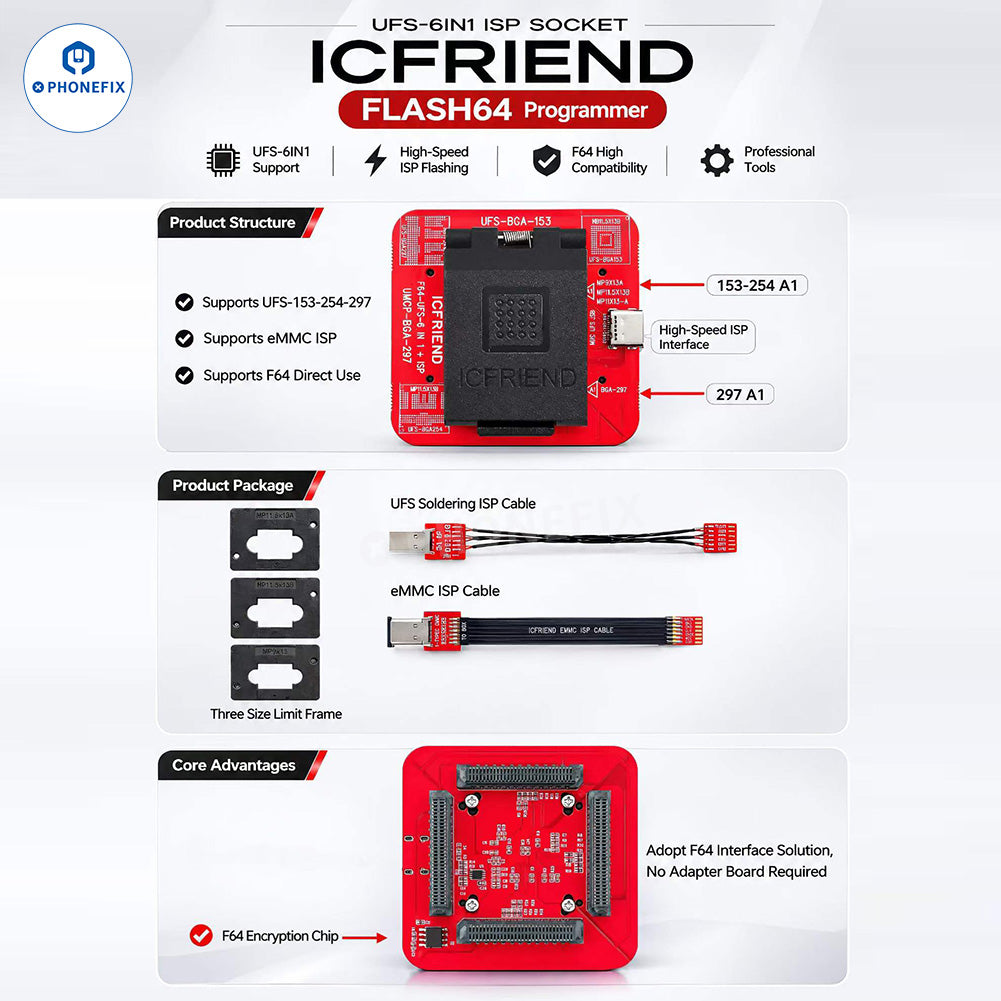
In these cases, the device is better handled with phone unlocking tools in a professional repair setting, where hardware boxes and programmers connect at the chipset or storage level and can perform boot repair, partition recovery, and lock removal that no consumer program can execute.
Most cases where a phone cannot be unlocked can be resolved with the software described above. What matters is checking the exact model, OS version, and lock type against the vendor's compatibility list before repairing the phone. For more complex situations, back up the phone promptly and use professional phone unlocking tools. Rest assured: with the right approach and the right tools, repairing a phone is easy.