
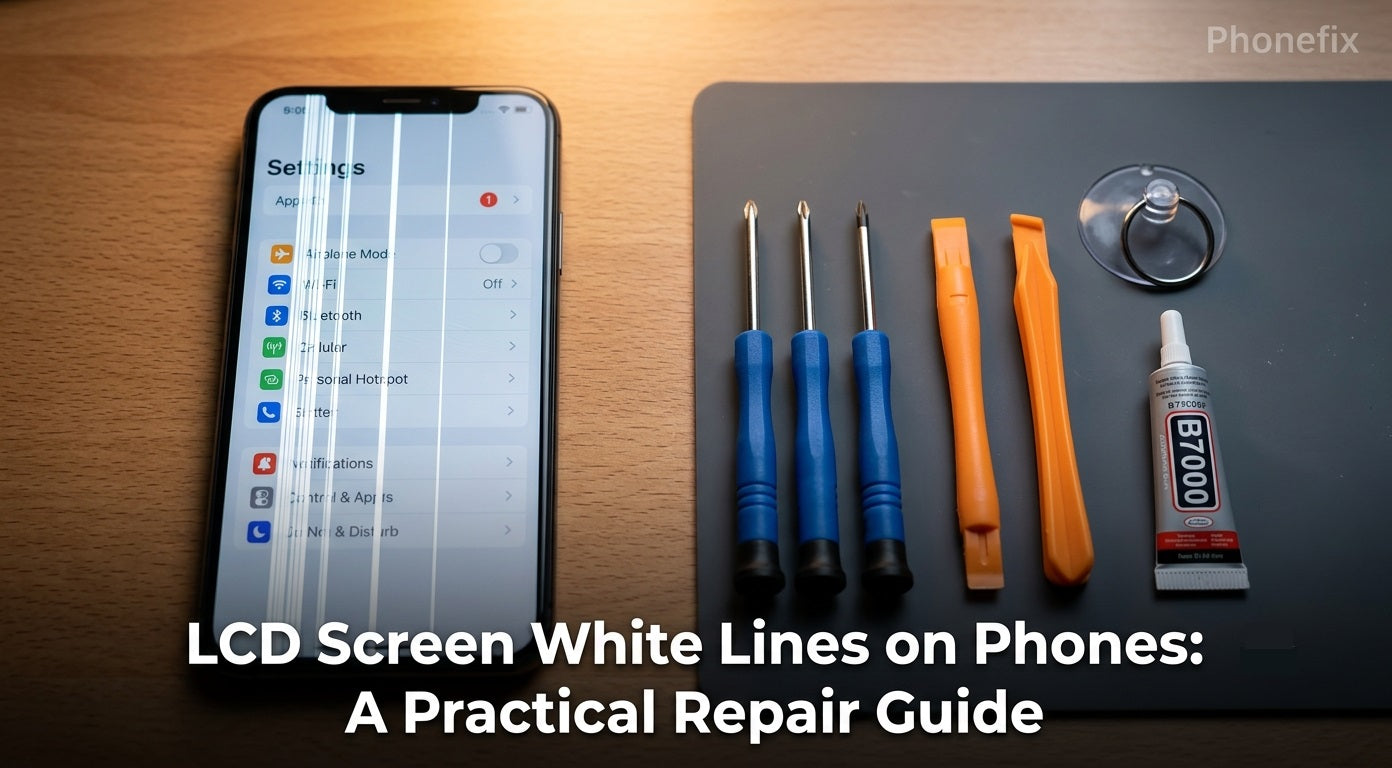
A white line running across a phone screen is one of the most common display failures. It appears suddenly, stays fixed in place, and does not go away when the screen content changes. This guide explains what causes these white lines, walks through software and hardware troubleshooting steps, and offers practical prevention advice.

I. What Are LCD White Lines and Why Do They Appear?
White lines on a Phone Screen are vertical or horizontal streaks that remain visible regardless of what the display shows. They are almost always a sign of hardware failure, not a software glitch. The lines occur when the connection between the display panel and the phone's internal circuitry is disrupted.
The most common causes include:
· Physical impact. Dropping the phone can damage the internal pixel structure of the display panel without cracking the outer glass. The impact force breaks the delicate connections inside the LCD, and the resulting lines are permanent.
· Pressure damage. Sitting on the phone, placing heavy objects on top of it, or squeezing it tightly applies concentrated pressure to the display. Unlike impact damage, pressure‑induced lines sometimes appear gradually, hours or even days after the incident.
· Loose or damaged flex cable. The ribbon cable that connects the display to the motherboard can come loose after a drop. A partially disconnected flex cable produces lines that may appear and disappear depending on how the phone is held or flexed.
· Water or moisture damage. Liquid that reaches the internal display panel can cause white lines, discoloration, or flickering. Any crack in the glass creates an entry point for moisture.
· Overheating. Excessive heat can burn out internal display components or stress the display circuitry, leading to line artifacts.
II. How to Fix Software and Hardware Issues
Before assuming the screen needs replacement, run a few diagnostic tests. These steps separate software problems from hardware failures.
1. Software Troubleshooting
Software glitches sometimes produce display artifacts that look like hardware damage. Try these steps in order:
· Force restart the phone. Hold the power and volume down buttons simultaneously for about 10 seconds until the device restarts. If the white lines disappear after restarting, the problem was software‑related.
· Boot into Safe Mode. Safe Mode disables all third‑party apps. If the lines disappear in Safe Mode, an installed app is causing the issue. Uninstall recently downloaded apps one by one to find the culprit.
· Check for system updates. Software updates often fix known display bugs. Go to Settings > System > Software Update and install any available updates.
· Take a screenshot and view it on another device. Open the screenshot on a computer or another phone. If the white lines do not appear in the screenshot, the issue is with the physical display hardware, not the software rendering.
· Factory reset. A factory reset erases all data and returns the phone to default settings. Back up photos and files first, then perform the reset through Settings > System > Reset. If the lines persist after a factory reset, the problem is definitely hardware.
2. Hardware Repair
If software troubleshooting does not remove the lines, the display hardware needs attention. The only reliable fix for a damaged LCD or broken flex cable connection is a screen replacement.
Diagnose first:
· Connect to an external display. If the phone supports screen mirroring or USB‑C video output, connect it to an external monitor. If the external display shows a clean image without lines, the damage is isolated to the phone's own display panel.
· Check for physical signs. Look for cracks, dents, or bulges on the phone frame. Swollen battery can push against the screen from inside and cause line artifacts.
Screen replacement procedure:
This repair requires precision and patience. For most modern phones, the recommended approach is to purchase a new screen assembly that comes pre‑mounted on the midframe. This reduces the risk of damaging the new display during installation.
Tools needed:
· Replacement screen assembly
· Phillips #0 screwdriver
· Pentalobe screwdriver
· Plastic opening tools like spudgers, guitar picks, or pry tools
· Hot Air Gun
· B7000 or T‑7000 adhesive glue
· 90%+ isopropyl alcohol
· Suction cup
Sequential operation:
1. Power off the phone completely.
2. Apply heat around the edges of the screen using a hot air gun. This softens the adhesive holding the screen in place.
3. Insert a suction cup near the bottom edge and gently lift to create a small gap.
4. Insert an opening tool into the gap and carefully slice through the adhesive around the perimeter of the screen.
5. Remove the screws securing the display connector bracket using the appropriate screwdriver.
6. Disconnect the flex cable(s) from the motherboard. Take note of how each cable connects.
7. Remove the old screen assembly from the frame.
8. Clean the frame with isopropyl alcohol to remove old adhesive residue.
9. Connect the new screen's flex cables to the motherboard. Ensure each connection clicks securely into place.
10. Power on the phone before sealing the screen. Test the new display for lines, touch response, and brightness.
11. Apply adhesive to the frame, press the new screen into place, and clamp it for 2‑4 hours while the glue cures.

III. How to Prevent White Lines from Appearing
Prevention is cheaper than repair. These habits reduce the risk of display damage:
· Use a protective case. A good case absorbs impact energy from drops and distributes pressure more evenly across the phone body.
· Apply a screen protector. Tempered glass protectors add a layer of impact resistance. While they do not prevent internal LCD damage from severe drops, they help absorb minor shocks.
· Avoid extreme pressure. Do not sit on the phone, place it in back pockets, or stack heavy items on top of it.
· Keep the phone dry. Water damage is a leading cause of display failure. Avoid using the phone in the rain, near sinks, or in humid environments. If the phone gets wet, power it off immediately and let it dry completely before turning it back on.
· Avoid overheating. Do not leave the phone in direct sunlight, inside a hot car, or near heat sources. Remove the case during intensive gaming or charging if the device gets unusually hot.
· Handle carefully during repairs. If replacing the screen yourself, work slowly and methodically. The flex cables are fragile. Accidental damage during installation is a common cause of line artifacts on new screens.
IV. FAQ
Q: Can white lines on a phone screen fix themselves?
A: No. A software‑related line may disappear after a restart or update. A true screen defect remains and often worsens over time.
Q: Does a screen replacement always fix the problem?
A: Yes, in almost all cases. White lines are caused by damage to the display panel or its connecting cable. Replacing the entire screen assembly addresses the root cause.
Q: Why did white lines appear after I replaced my screen?
A: This usually happens when the flex cable is not attached properly, or the cable was damaged during installation. Try reseating the cable connection. If the lines persist, the replacement screen itself may be defective.
Q: How much does a screen replacement cost?
A: Costs vary by phone model. Budget phones may cost $50‑100 for a replacement screen. Flagship models like iPhones or Samsung Galaxy devices often cost $200‑400 or more for genuine parts.
Q: Can I just replace the glass instead of the whole screen?
A: For white line issues, no. White lines indicate damage to the LCD panel itself or the flex cable connection. Replacing only the outer glass does not fix internal display damage.
Q: Will a factory reset fix white lines?
A: Only if the lines were caused by a software glitch. If the lines remain after a factory reset, the display hardware is damaged.
Q: How long does a screen replacement take?
A: A professional repair shop typically completes the job in 1‑2 hours. DIY replacement may take 2‑4 hours depending on experience.

White lines on an LCD screen are a hardware issue in the vast majority of cases. Software troubleshooting rules out temporary glitches, but a persistent line almost always means the display needs replacement. Prevention through cases, screen protectors, and careful handling is the best strategy. For those who choose to repair, the right Phone Repair Tools and a methodical approach make the difference between a successful fix and further damage.


