
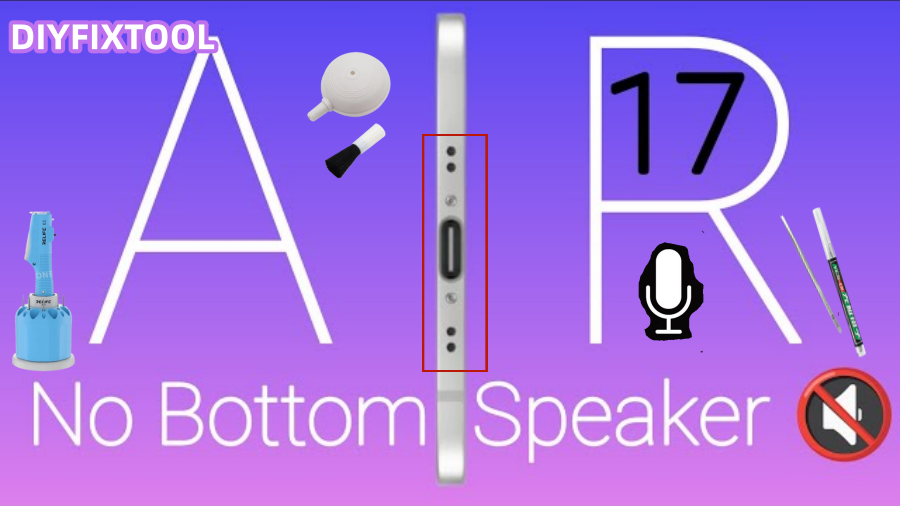
Apple's newest smartphone, the iPhone 17 Air, has a strong performance, a stylish design, and a top-notch audio system that guarantees a great sound experience for calls, films, and music. However, some customers might face an issue where the bottom speaker isn't functioning properly, which could lower call quality and interfere with their enjoyment. This Phonefix post will explain how to diagnose and resolve issues with the iPhone 17 Air's bottom speaker as well as when to get expert assistance.
Understanding the iPhone 17 Air's Bottom Speaker
The bottom speaker on the iPhone 17 Air is responsible for playing most of the sound, including call audio, music, and video audio. It works in conjunction with the top earpiece speaker to provide clear audio output. The iPhone bottom speaker is typically located at the bottom of the device and works closely with the device's speaker system. Any hardware, software, or settings malfunction can cause the bottom speaker to malfunction, so the first step in troubleshooting is to accurately diagnose the root cause.

Step 1: Check Volume and Silent Mode
Before ruling out hardware issues, first ensure that speaker problems are not caused by volume settings or silent mode. Occasionally, users may unintentionally mute their devices or lower the volume too much.
How to do it:
1. Adjust the volume: Use the volume buttons on the side of your phone to increase the volume during a call or while playing audio.
2. Turn off Silent Mode: Ensure your phone's ring/silent switch is in the ringing position. If this switch is in the silent position, the speaker will not produce sound.
3. Check audio output settings: Sometimes, iPhones automatically switch audio output to headphones or Bluetooth devices. Open Control Center and confirm that audio output is switched to "Speaker" mode.
These steps will help you quickly rule out simple volume or setting issues.
Step 2: Clean the Speaker
Over time, dust, dirt, or small particles can accumulate in the speaker openings, affecting sound output. If the speaker surface is blocked, the sound may become muffled or disappear completely.
Cleaning steps:
1. Turn off your iPhone: To be safe, turn off the device first.
2. Clean the speaker: Use a clean, soft brush (such as a small toothbrush) to gently brush away dust and debris from the speaker grille. If possible, gently blow dust away from the speaker area with compressed air, but never use your breath, as moisture can damage the device.
3. Avoid liquids: Avoid using water or other liquids during cleaning to prevent them from entering the device.
After cleaning, power on the device and test the speaker to see if the problem is resolved.
Step 3: Restart your iPhone 17 Air
Sometimes, the phone's system may experience temporary errors that cause the speaker to malfunction. Restarting your phone refreshes the device's audio system and clears temporary cache that may be interfering with audio output.
Restart procedure:
1. Press and hold the side button and any volume button until the power off slider appears.
2. Drag the slider to power off the device.
3. After about 10 seconds, press and hold the side button to power on again.
After restarting the device, check if the bottom speaker is working properly again.

Step 4: Check Bluetooth Device Connection
Sometimes, the iPhone automatically switches audio output to Bluetooth devices, such as headphones or Bluetooth speakers. In this case, the bottom speaker may appear silent, even though the sound is actually being routed to the Bluetooth device.
Solution:
1. Open Settings > Bluetooth and confirm that Bluetooth is turned on.
2. Turn off Bluetooth or disconnect all connected Bluetooth devices.
3. Make a call or play audio to check if the speaker works normally again.
If the Bluetooth connection is the root cause, you can simply restore audio output by turning Bluetooth off.
Step 5: Test Different Apps
If the bottom speaker only fails to work in specific apps, the problem may lie in the app's settings or permissions. For further diagnosis, try testing the speaker in multiple apps.
Testing Methods:
1. Make a phone call: Test the speaker functionality by making a phone call.
2. Use FaceTime: Test the audio output using FaceTime or a video call.
3. Play media: Play videos or songs in YouTube or a music app.
If the speaker works fine in most apps, the problem may be limited to a specific app. You can try updating or reinstalling that app.
Step 6: Check for water stains or moisture damage
Although the iPhone 17 Air is water-resistant, it's not completely waterproof. Exposure to water or use in humid environments can damage the speaker.
Troubleshooting:
1. Turn off your iPhone: If you suspect your device has gotten wet, turn it off immediately.
2. Place it in a dry environment: Place your phone in a dry environment and use a desiccant packet to accelerate moisture evaporation.
3. Wait 24 hours: Wait at least 24 hours before trying to turn it on again.
If the device still does not work properly, a professional inspection may be necessary to rule out corrosion of iPhone components or hardware damage.
Step 7: Update iOS software
Some software glitch can cause audio output problems. If your iPhone 17 Air speaker isn't working properly, make sure you have the latest iOS update installed.
Update steps:
1. Open Settings > General > Software Update.
2. If an update is available, install the latest version of iOS. 3. After the update is complete, test if the speaker is working properly again.
Many users have reported that speaker issues were fixed after updating iOS, so keeping your system up to date is very important.
Step 8: Reset All Settings
If the above steps don't work, try resetting all settings to restore the system to default configuration. This operation will not delete your data, but it will reset all audio, Bluetooth, and accessibility settings.
Reset Steps:
1. Open Settings > General > Transfer or Reset iPhone > Reset > Reset All Settings.
2. If prompted, enter your device passcode.
3. Wait for the device to restart and restore default settings.
After resetting settings, check if the speaker is working properly again.

Step 9: Check for Hardware Damage
If your iPhone 17 Air has been dropped or bumped, it may have caused speaker hardware damage. The speaker connector may be loose or damaged, causing audio output failure.
Check Method:
1. Observe whether there are any obvious cracks near the speaker mesh.
2. During a call, listen for any unusual noises or buzzing sounds.
3. Check if Face ID is working properly (because the Face ID module shares hardware resources with the speaker).
If hardware damage is found, it is recommended not to disassemble the device yourself. It is best to take the phone to a professional repair center for inspection.
Step 10: Seek Professional Repair
If the above steps still do not solve the problem, the safest course of action is to seek professional repair. The bottom speaker of the iPhone 17 Air involves delicate hardware and circuitry, and repair may require component replacement or micro-soldering.
Professional Repair:
1. Go to an authorized service center: Such as an Apple Authorized Service Provider or a reliable third-party repair service provider.
2. Detailed inspection: Professional technicians will use specialized tools to perform a comprehensive inspection of the device and diagnose the root cause of the problem.
Whether it is due to hardware damage, internal circuit failure, or other complex issues, professional repair personnel can provide you with precise repair solutions.
You can start by testing the volume, cleaning the speaker, and restarting the iPhone 17 Air if the bottom speaker isn't functioning properly. Hardware damage, software bugs, or Bluetooth interference could be the culprit if the issue continues. For quick, dependable, and affordable repair services, it is now advised to go to China Phonefix. Your iPhone 17's audio system will be returned to normal by their professionals.


