
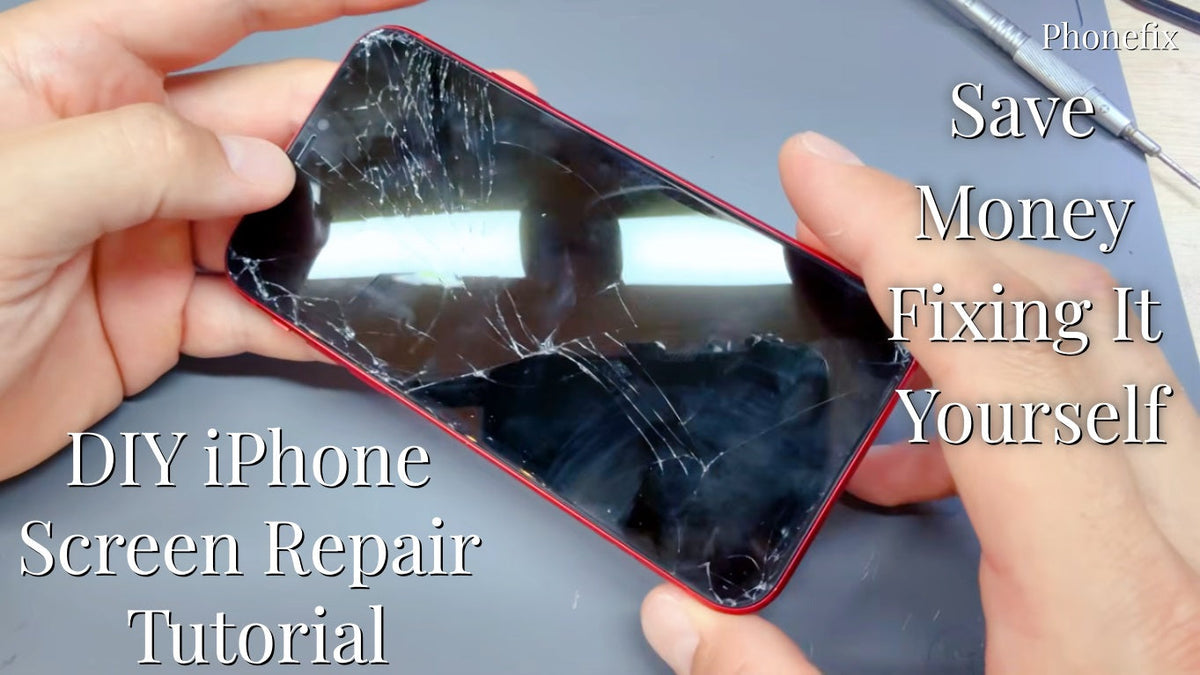
Many people have dropped their phones and cracked the screen. If the phone is out of warranty, having the screen replaced by the manufacturer can be expensive. There is a better option: you can repair the phone yourself. It is actually not difficult, saves money, and helps develop your hands-on skills. This tutorial covers pre-repair preparation and safety, removing the damaged screen, installing a new screen, and troubleshooting, to help you successfully complete a DIY repair.

I. Preparation and Safety
1. Order the correct iPhone replacement screen for the exact model.
The screen usually includes the display panel, touch glass, and connector cables. Some models include pre-applied adhesive. Confirm screen size, display type (LCD or OLED), and connector layout before ordering.
2. Gather the right tools.
Required tools include a P2 pentalobe screwdriver, a Y000 tri-point screwdriver, a suction cup handle, a triangle pick with a 3mm depth mark, an adhesive cutter, a nylon spudger, ESD-safe tweezers, alcohol wipes, Kapton tape, and replacement adhesive. Packaging tape secures shattered glass. A hot air gun, or heating pad softens adhesive.
3. Keep a paper sketch.
Screws differ in size and length. They must return to the same holes. A simple sketch of the inside and screw locations saves time during reassembly.
4. Back up and power off.
A full backup protects data. The iPhone must be switched off completely. This prevents short circuits when connectors are clipped or unclipped.
5. Ground the body.
Touch an unpainted metal object or wear an anti-static wristband. Static electricity can damage internal components.
II. Removing the Broken Screen
1. Remove the bottom screws.
Most iPhones have two pentalobe screws beside the charging port. Use the P2 pentalobe screwdriver.
2. Tape shattered glass.
Packaging tape holds loose glass in place. It protects the repairer and internal parts. Do not cover the Home button if present.
3. Heat the bottom edge.
Heat loosens the adhesive on newer, water-resistant iPhones. Apply a hot air gun, or heating pad.
4. Attach a suction cup.
Place a small suction cup on the bottom half of the screen. Pull up gently to create a small gap. If the screen is not totally shattered, the suction cup lifts it from the body. A prying tool slots between the screen and the body.
5. Cut the adhesive.
Work an adhesive cutter or pick under the gap. Move around all edges. Third-party picks should not go more than 3mm under the screen. Avoid the screen connector cables.
6. Lift the screen.
Once the adhesive is cut, lift the screen like a book cover. The display remains attached by ribbon cables.
7. Remove the top cover plate.
Near the top, a silver cover plate locks the screen connectors in place. Unscrew it and remove the plate.
8. Unclip the connectors.
Use a smaller prying tool to unclip the four ribbon cable connectors. These connectors snap into place like Lego pieces. After they are unclipped, remove the screen from the body.
9. Remove extra components if required.
Older models need more disconnections. Check the repair manual for the exact model.

III. Transferring Components and Installing the New Screen
1. Prepare the new screen.
New replacement screens often come without the camera, sensor, earpiece, fingerprint sensor, or Home button. These parts must be moved from the old screen.
2. Remove the camera, sensor, and earpiece.
Remove the screws and cover plate that secure the camera. The camera, sensor, and earpiece then come away easily.
3. Remove the fingerprint sensor and Home button parts.
Remove the screws around the silver cover plate on the back of the screen. Unclip the fingerprint sensor ribbon cable with the prying tool. Pull off the fingerprint sensor; its rubber mounting is sticky on one side. Lift the sensor electronics from the small white peg. Remove the screen cover plate.
4. Remove the plastic locators.
Use tweezers or a small screwdriver to take out the small plastic locators for the camera and the sensor near the earpiece.
5. Install the components on the new screen.
Follow the removal steps in reverse. Replace the plastic locators first. Fit the camera and sensor into the locators. Replace the earpiece and screw the silver cover plate back. Stick the fingerprint sensor onto the new screen with the sticky rubber mounting. Clip the electronics over the white peg. Clip the ribbon cable connector. Replace the fingerprint sensor cover plate and screws. Replace the screen cover plate and perimeter screws.
6. Connect the new screen.
Clip in the four ribbon connectors. Each one has a different size and shape, so placement is clear.
7. Test before sealing.
Fold the screen down gently and rest it on the body. Power on the phone. Check the display, touch sensor, fingerprint sensor, Home button, and front camera alignment. If something fails, unclip and reconnect the ribbon cables.
8. Secure the screen.
Turn the phone off again. At the top of the screen, two plastic clips slide into the body. Press the screen into place from the top down. Snap the bottom into place and align the screw holes. Slide in the pentalobe screws and tighten them.
9. Run Repair Assistant if available.
Boot the iPhone and go to Settings > General > About > Parts & Service History. Tap Restart & Finish Repair and follow the on-screen instructions. This calibrates replacement parts.
IV. Troubleshooting and Professional Options
1. Clean the screen and remove accessories.
Dirt, moisture, screen protectors, faulty chargers, and ill-fitting cases can cause display issues. Clean the screen with a soft, lint-free cloth.
2. Run built-in diagnostics.
Power off the iPhone and hold both volume buttons. Plug it into a 20W or higher charger. Release the buttons when the Apple logo appears. On the Diagnostics & Repair screen, select Run Diagnostics. Mobile Resource Inspector checks the display and battery. Display Pixel Anomalies diagnoses LCD pixel issues.
3. Check charging and internal damage.
Plug the phone into a power source for up to 10 minutes. Use a USB current meter to confirm whether the phone draws power. If the display only works while charging, a power issue may exist. After opening the phone, use a thermal imaging camera to locate abnormal heat spots. Use a digital multimeter to measure battery voltage. Use a trinocular microscope to inspect the connectors for debris or bent pins. These checks help identify power faults and connector damage before replacing the screen.
4. Replace the display if needed.
Extensive damage usually requires a new screen. A qualified technician can handle severe internal damage.
5. Compare professional costs.
AppleCare can reduce screen replacement to as little as $29. Without coverage, costs can reach $379 depending on the model. An iPhone 16 Pro self-service kit costs $329, plus a $49 tool rental fee. Some third-party kits cost $700 or more. Apple’s iPhone Screen Repair website offers estimates, authorized technicians, and mail-in service.
V. FAQ
Q1: How long does a DIY iPhone screen replacement take?
A: A first-time repair usually takes 1 to 2 hours. Experienced repairers can finish in 30 to 45 minutes. Extra time should be reserved for testing and cleaning.
Q2: Will I lose my warranty after replacing the screen myself?
A: Yes, accidental damage and self-repair are not covered by Apple’s standard warranty. AppleCare may still cover some issues, but self-inflicted damage is excluded. A manufacturing defect may still qualify for warranty service.
Q3: Can I replace only the glass and keep the original display?
A: No, most modern iPhone screens are fused assemblies. The glass, touch layer, and display panel are bonded together. A full screen replacement is the practical option for most models.
Q4: Do I need to transfer the Home button or Face ID components?
A: Yes, for models with a Home button, the original button and fingerprint sensor must be transferred to the new screen. Face ID components are paired to the logic board and cannot be replaced independently without losing functionality.
Q5: What should I do if the new screen does not turn on?
A: Power off the phone and reconnect all ribbon cables. Check for bent pins or debris on the connectors. If the problem continues, test the original screen or seek professional help.

DIY iPhone screen repair can save money, but it demands patience, correct parts, and careful technique. The steps above provide a practical roadmap for preparation, removal, component transfer, installation, and troubleshooting. A complete set of phone repair tools makes the DIY process smoother and safer. If the repair feels too risky, professional service remains a dependable option.


