
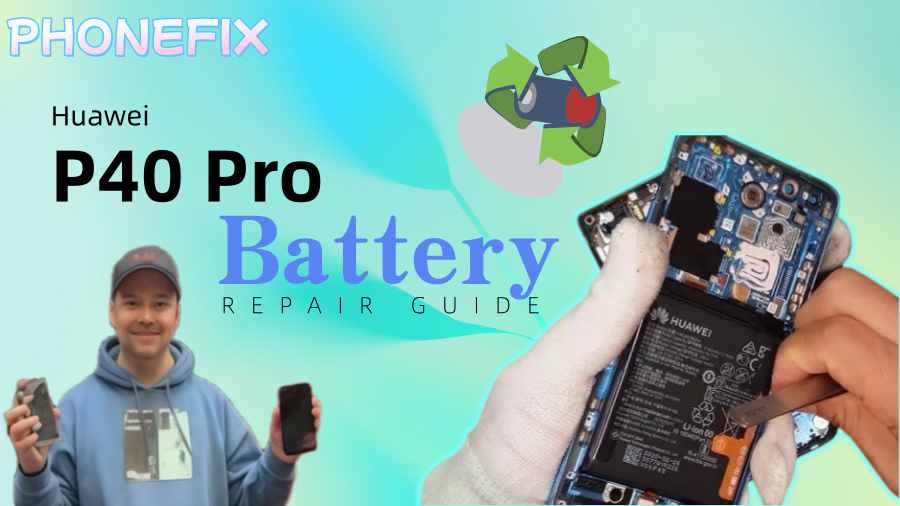
Many consumers choose the Huawei P40, the company's flagship smartphone, because of its potent camera features and outstanding performance. Nevertheless, the phone battery will eventually deteriorate, resulting in a short battery life and even issues like swelling. This article, Phonefix will provide you a thorough battery replacement method to help you get your Huawei P40 back up and running if it has a damaged battery or a short battery life.
I. Why Do You Need to Replace Your Huawei P40 Battery?
Over time, phone batteries will gradually degrade, manifesting as slower charging speeds, inaccurate battery level displays, and even overheating during use. For Huawei P40 users, if you encounter the following problems, you may need to consider replacing the battery:
• Significantly reduced battery life, with noticeably shorter usage time after charging;
• Battery swelling, causing the back cover to deform;
• Frequent phone crashes or sudden shutdowns;
• Rapid power loss after a full charge, rendering the phone unusable.

II. Tools Required Before Replacing the Huawei P40 Battery
To successfully replace the Huawei P40 battery, the following tools are essential:
• Brand new original Huawei P40 battery: Ensure you purchase an original battery to avoid using inferior substitutes.
• Small Phillips screwdriver (size 00): Used to remove fixing screws.
• Plastic pry bar/lock pick: Used to remove the back cover and other parts to avoid damaging the phone.
• Suction cup handle: Used to easily remove the back cover of the phone.
• Hot air gun, hair dryer, or iOpener: Used to heat the edges of the back cover to soften the adhesive.
• Antistatic tweezers: Help disconnect the battery connector.
• New battery adhesive: ensures the new battery adheres firmly to the inside of the phone.
• Anti-static wrist strap: Prevents static electricity from damaging internal components of the phone.
III. Steps for Replacing the Huawei P40 Battery
Step 1: Power Off and Prepare
First, ensure the Huawei P40 is completely powered off and remove the SIM card tray. This step is to avoid short circuits or other electrical problems during battery replacement.
Step 2: Loosen the Back Cover Adhesive
The Huawei P40's back cover is secured with strong adhesive. To remove it, use a heat source (such as a hot air rework station, hairdryer, or iOpener) to heat the edges of the back cover to soften the adhesive. Heat the edges of the back cover for a few minutes until the adhesive softens. Be careful not to heat it for too long to avoid damaging the glass or other internal components.
Step 3: Remove the Back Cover
Use the suction cup handle to hold it in the center of the back cover and gently lift it upwards to create a small gap. Next, carefully insert a plastic pry bar into the gap and gently slide it along the edge to cut the adhesive. If you encounter resistance during removal, you can heat the back cover appropriately to continue softening the adhesive. Be especially careful when removing the back cover to avoid breaking the glass.
Step 4: Remove the Screws from the Mid-Frame
After removing the back cover, you will see the internal mid-frame of the phone. Use a Phillips screwdriver (00 gauge) to remove the screws from the mid-frame one by one. Different P40 models may have variations in the number and location of screws, so be sure to carefully remove and keep the screws safe.
Step 5: Remove the Mid-Frame
After loosening the screws, use a pry bar to gently pry open the clips on the mid-frame and slowly remove it. Avoid using excessive force during removal to prevent damage to the clips or other internal components.

Step 6: Disconnect the Battery Cable Connector
Locate the battery cable connector and carefully disconnect the battery cable from the motherboard using the flat end of a pry bar. Be extremely careful during disassembly to avoid damaging the battery connector. If there are other cable connections, disconnect them one by one.
Step 7: Remove the Old Battery
After disconnecting the battery cable, you will see the battery secured to the inside of the phone by adhesive. Locate the adhesive tab on the battery and gently pull it to loosen the adhesive. If the battery is firmly attached, you can use a heat source to heat the battery area to further soften the adhesive. Use a plastic pry bar to gently remove the battery, avoiding puncturing it.
Step 8: Install the New Battery
Before installing the new battery, first clean any remaining old adhesive from the battery compartment. Next, apply new battery adhesive and install the new battery into the battery slot. Ensure the battery connector aligns correctly with the motherboard interface, then press firmly to secure the battery.
Step 9: Reconnect the Battery and Other Cables
After installing the new battery, use a pry bar to reconnect the battery cable and other disconnected cables to the motherboard, ensuring a secure connection to avoid battery problems caused by looseness.
Step 10: Reassemble the Phone
Reverse the disassembly steps to reassemble the Huawei P40. First, install the mid-frame, ensuring all screws are tightened. Then, apply new adhesive to the edge of the back cover and securely reinstall it.
Step 11: Test the Phone
After reassembly, turn on the Huawei P40 and test if the phone starts normally. Check if the battery level is displayed correctly and ensure all phone functions are working properly.
IV. Precautions and Frequently Asked Questions
1. Can I replace the battery myself?
While it is possible to replace the Huawei P40 battery yourself, due to the complex internal structure of the phone, involving high-temperature operations and disassembly of small parts, it is recommended that users without repair experience seek assistance from professional repair personnel. Avoid damaging your phone due to improper operation.
2. Why won't my phone turn on after replacing the battery?
The phone may not turn on after replacing the battery because the battery cable connection is loose or the battery is not installed correctly. We recommend double-checking the battery connection and battery position to ensure they are not loose.

3. How do I ensure my phone's water resistance after replacing the battery?
The Huawei P40 has a certain degree of water resistance, but the battery replacement process will damage the original seal. To restore the phone's water resistance, we recommend using specialized waterproof adhesive strips and sealant when reinstalling the back cover to ensure the phone's water resistance during daily use.
You now have all the knowledge you require to change the battery in your Huawei P40 thanks to this detailed guide. Even though this procedure calls for some technical know-how, if you carefully follow these directions, you can finish the replacement. China Phonefix has a large selection of top-notch components and equipment to fulfill all of your mobile phone repair requirements, making the process simple and efficient. To keep your gadget in peak shape, check out their items now and read more helpful repair instructions!


