
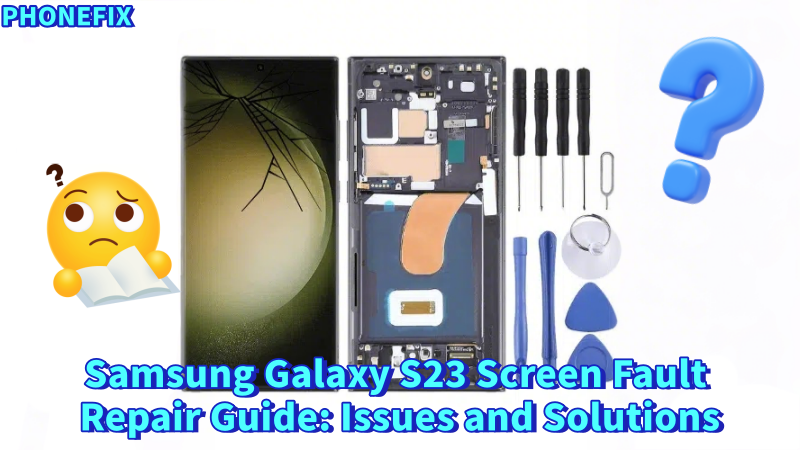
The Samsung Galaxy S23, as a high-end smartphone, boasts powerful hardware and an advanced software system. However, like any electronic device, it may encounter various issues. Among these, screen problems are relatively common. In this guide, Phonefix will walk you through troubleshooting steps and repair procedures to help you identify the root cause of the issue and provide solutions.

I. Software Issues and Simple Adjustments
When a screen issue arises, the first thing to consider is whether it is caused by a software fault. By following these simple troubleshooting steps, you can attempt to resolve the issue without professional help.
1. Clean the Screen and Remove the Screen Protector
First, ensure that the surface of the screen is clean and free from dust. Use a Microfiber Cleaning Wiper to gently wipe the screen, avoiding any dust, fingerprints, or oil that might affect touch sensitivity. Additionally, if you are using a screen protector, it is recommended to check if it is in good condition. Sometimes, an ill-fitting screen protector can impact the screen's responsiveness or even cause false touches. If the protector is damaged or bubbling, it is advisable to replace it promptly.
2. Force Restart the Device
If the screen becomes unresponsive or lags, you can try force restarting the device. Press and hold the side button and the volume down button until the Samsung logo appears, and the phone begins restarting. A restart can sometimes resolve temporary software glitches and restore normal screen functionality.
3. Enter Safe Mode
If the screen issue persists, try entering Safe Mode for further troubleshooting. In Safe Mode, the phone will only run the system's built-in applications, and third-party apps will not be activated. To enter Safe Mode, restart the phone and, when the Samsung logo appears, press and hold the volume down button until the phone enters Safe Mode. If the screen works fine in Safe Mode, this suggests that the issue might be caused by a third-party app. You can then try uninstalling the recently installed apps to see if that resolves the issue.

4. Check for System Updates
Occasionally, system bugs can cause screen abnormalities. Therefore, it's important to check if there are any available system updates. Go to "Settings" -> "Software Update" to see if your current system is up to date. If there is an update available, it is recommended to download and install it. System updates often contain bug fixes and security patches, which may help solve screen problems.
5. Clear App Cache
Sometimes, cached data from certain apps can lead to screen issues. Go to "Settings" -> "Apps Management" and select the relevant app, then clear its cache data. This step may resolve touchscreen problems caused by app data.
6. Factory Reset
If none of the above methods solve the problem, the last resort is to perform a factory reset. Please note that a factory reset will erase all personal data, including contacts, photos, apps, etc., so make sure to back up your data before proceeding. Go to "Settings" -> "General Management" -> "Reset," then select "Factory Data Reset." If the issue is due to a system malfunction, performing a factory reset is often effective in resolving it.

II. Hardware Issues and Professional Repair
If the screen problem persists after trying the software troubleshooting steps, the issue is likely due to hardware failure. In such cases, you should take the phone to a professional service center for further inspection. Hardware problems could involve issues with the screen panel, loose connectors, or motherboard failures.
1. Official After-Sales Service Center
When a hardware issue occurs, the recommended solution is to contact Samsung's official after-sales service center for diagnosis and repair. Samsung's service centers are equipped with professional tools and technicians who can accurately diagnose the cause of the issue and provide factory repairs. Remember to bring your purchase invoice and warranty card when sending your device for repair to ensure that your service is covered.
2. Use Original Parts
During the repair process, if the screen or related components need to be replaced, it is highly recommended to use high quality Samsung OLED Screens. Some users have reported that after using non-original screens, they encountered issues with screen functionality after updating to One UI 6.1. Therefore, it is important to use genuine parts to avoid these problems.
3. S Pen Compatibility Issues
If you are using the Samsung Galaxy S23 Ultra and encountering screen issues, but the S Pen still works fine, this may point to a specific hardware issue. In such cases, there could be a fault in the connection between the screen and other hardware components. Professional repair technicians will need to perform a detailed examination to determine whether the issue lies with the screen, the connector cables, or the motherboard.
III. Conclusion
Although screen problems are common, most issues can be resolved through simple software troubleshooting. While addressing the issue, it's best to start with simple software adjustments and troubleshooting to avoid unnecessary repair costs.If you want to know more about Samsung phone repair issues, continue following China Phonefix for more helpful tips and guides.


