
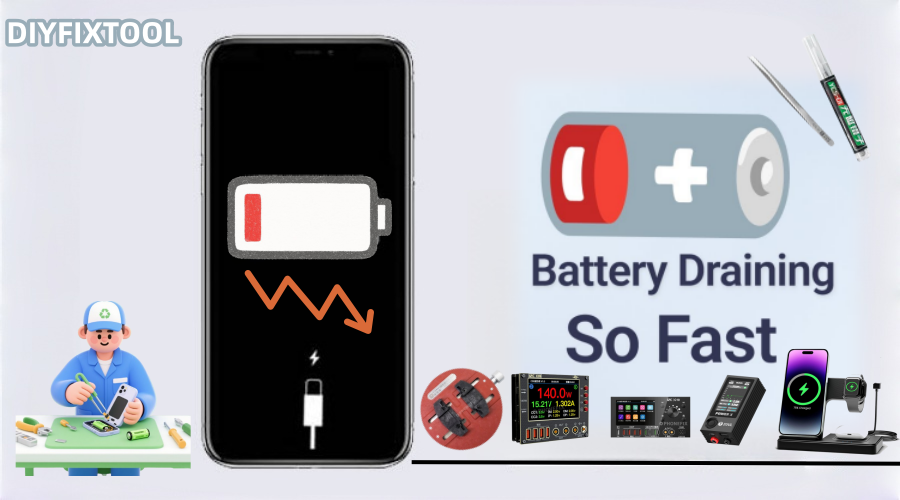
A lot of iPhone users have problems with their batteries dying quickly, especially after a while of use, since batteries usually last less time after being used. Many causes might cause quick battery drain, hurting the user experience. Fortunately, optimization techniques can fix the majority of problems. In this post, Phonefix will look into the common causes of rapid iPhone battery loss, present practical solutions, explain how to monitor battery health, and when to consider replacing the battery.

I. Why Does My iPhone Battery Drain Too Quickly?
There are many reasons why an iPhone battery might drain too quickly. Here are some common causes:
1. Background App Refreshing
Many apps constantly refresh content while running in the background, consuming a significant amount of battery power. Even if you don't open these apps, they still use resources in the background.
2. High Screen Brightness
Maintaining high screen brightness for extended periods consumes a lot of battery power, especially outdoors or in well-lit environments.
3. Location Services
Many apps use location services, constantly accessing your geographic location, causing rapid iPhone battery drain. Examples include Maps and social media apps.
4. Frequent Push Notifications
Frequent notifications keep your device constantly active, increasing battery consumption, especially when these notifications are sent frequently.
5. Outdated Software or System Vulnerabilities
Outdated iOS versions or system vulnerabilities can also lead to poor battery efficiency. Timely system updates can effectively fix these issues.
6. Battery Aging
Over time, the health of the battery naturally declines. Even with normal use, the battery's maximum capacity will gradually decrease, resulting in reduced battery life.
Understanding these reasons, we can address these issues and extend battery life through some optimization measures.
II. How to Extend iPhone Battery Life?
Here are some practical tips to help you effectively extend your iPhone's battery life:
1. Enable Low Power Mode
Low Power Mode is a very effective power-saving tool. Enabling this mode when your battery is low reduces background activity and unnecessary functions. Enabling Low Power Mode is simple:
· Open the "Settings" app, select "Battery," and then turn on "Low Power Mode."
In addition, when the battery level drops below 20%, your iPhone will automatically prompt you to turn on Low Power Mode. While Low Power Mode reduces the use of certain functions, such as disabling push notifications and background refresh, it is very effective in extending battery life.
2. Manage Background App Refresh
Background app refresh is one of the main causes of battery drain. By default, many apps constantly refresh content in the background, wasting power. You can save power by turning off unnecessary background refresh:
· Open the Settings app, go to General, tap Background App Refresh, and then turn off apps that don't need to update frequently.
For some apps that don't need to refresh in real time (such as social media apps), turning off background refresh will significantly reduce battery consumption.

3. Lower Screen Brightness
The screen is one of the main sources of battery drain on your iPhone. Higher screen brightness accelerates battery drain, especially outdoors or in bright sunlight. You can lower the brightness in two ways:
· Open Control Center (swipe down from the top of the iPhone screen or swipe up from the bottom) and adjust the brightness slider;
· Or go to Settings > Display & Brightness and manually lower the brightness.
Additionally, enabling automatic brightness adjustment is a good option, as it automatically adjusts screen brightness based on ambient light, further extending battery life.
4. Turn off Location Services
Many apps constantly access your location information, which consumes a significant amount of battery. You can manage location services by following these steps:
· Open the Settings app, select Privacy > Location Services.
· Turn off location permissions for unnecessary apps, or set them to access location "only when using the app" to prevent apps from continuously accessing location information in the background.
5. Reduce Push Notifications
Too many push notifications can cause your iPhone to remain in "standby" mode for extended periods, accelerating battery drain. You can reduce the number of notifications by following these steps:
· Open the Settings app, go to the Notifications menu.
· View which apps are sending notifications, turn off unnecessary notifications, or adjust how notifications are displayed (e.g., only show the notification content without waking the screen).
6. Regularly Update System and Apps
Regularly updating your iPhone's iOS system and applications is crucial. New iOS versions usually include battery optimization features and fix known system vulnerabilities. Updating not only improves battery life but also enhances the overall performance of your device.
• Go to Settings > General > Software Update to check for available system updates.
For apps, open the App Store to see if there are any updated versions available for download.
7. Turn off unnecessary features.
Features like Bluetooth, Wi-Fi, and AirDrop can drain battery quickly if left on for extended periods, especially when no devices are connected. You can quickly turn these off in Control Center:
• Swipe down from the top right corner of the screen (or swipe up from the bottom for older iPhones) to turn off Bluetooth, Wi-Fi, and AirDrop.
8. Enable Optimized Battery Charging.
iOS 13 and later offer the "Optimized Battery Charging" feature, which learns your charging habits to reduce battery aging and extend battery life. To enable this feature:
• Open the Settings app, select Battery > Battery Health, and then turn on "Optimized Battery Charging".

III. How to Check Your iPhone Battery Health?
If you suspect a problem with your iPhone battery, you can check its current condition using the "Battery Health" feature. This feature tells you the battery's maximum capacity and health status:
1. Open the "Settings" app and go to "Battery".
2. Tap "Battery Health & Charging".
3. Here you can view the battery's maximum capacity. If the capacity is below 80%, the battery is aging and may need to be replaced.
If you see a "Battery needs replacement" message, or if the battery health has significantly deteriorated, it is recommended to consider replacing the battery.
IV. iPhone Battery Repair and Testing Tools
Using appropriate tools can ensure a smooth repair process when repairing iPhone batteries. Here are some commonly used iPhone battery repair and testing tools:
1. Battery Repair Kit
Includes disassembly tools, suction cups, pry bars, screwdrivers, etc., to help disassemble and replace the battery. Common battery repair kits include:
· Suction cup: Used to easily remove the screen from the iPhone;
· Pry bar: Used to gently separate the screen from the phone's theme;
· Anti-static gloves: Prevent static electricity from damaging the internal electronic components of the device.
2. Battery Testing Tools
Battery testing tools can help you test the battery's health status. Common battery testing equipment includes:
· Battery analyzer: Can detect battery capacity, health status, and potential problems.
· Digital multimeter: Used to check battery voltage and charging status to confirm whether the battery is working properly.
These tools are not only suitable for iPhone battery repair but can also be used for battery testing and replacement in other mobile devices. If you are unfamiliar with the disassembly process, it is recommended to seek professional repair services.
V. When to Replace Your iPhone Battery
When your iPhone battery health deteriorates significantly, or the battery drains quickly even after charging, it may be time to replace it. Especially when the maximum capacity is below 80%, battery performance will be significantly affected and may not be able to support normal use. In this case, it is best to go to an Apple Store or authorized service provider to replace the battery. After replacing the battery, your iPhone will regain most of its original performance, and battery life will be significantly improved.
Rapid battery drain is a typical concern for iPhones. Maintaining optimal iPhone performance requires routinely monitoring battery health and changing the battery as needed. If you plan to change the batteries yourself, make sure to utilize expert repair tools and testing equipment to assist you accomplish the operation smoothly. Welcome to China Phonefix, where you can choose the appropriate iPhone diagnostic equipment. To make repairs easier for you, we provide top-notch battery testing equipment and repair tools. Your iPhone battery will last longer with these useful hints and recommendations, improving your overall device experience.


