
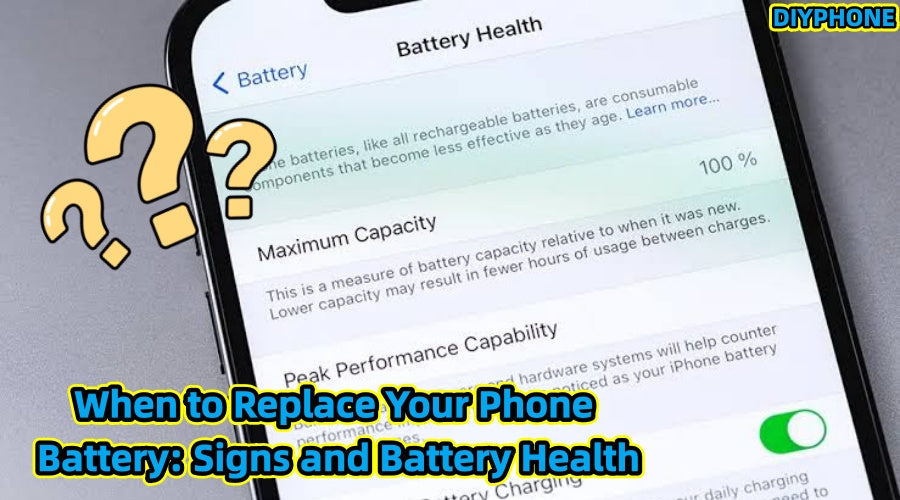
Many people check their battery health and start wondering whether they need a replacement once it reaches 80%. Generally, 80% is a useful reference point, but it is not a strict rule. If your battery still meets your needs, you can continue using it. On the other hand, even at 85%, significant battery drain, unexpected shutdowns, or abnormal overheating may indicate that it is time to have the battery checked.

I. 80% Is Only a Reference Point
1. iPhone users: You can check "Maximum Capacity" under "Settings — Battery — Battery Health & Charging." For iPhones, 80% can generally be used as an important reference point when considering iPhone Battery replacement, but this does not mean that the battery must be replaced immediately once it falls below 80%. If the device is still under warranty or covered by services such as AppleCare+, whether a free replacement is available depends on the specific model, service terms, and inspection results.
2. Android users: When using Android phones such as Samsung or Google Pixel devices, some models provide information such as "Battery Health," "Maximum Capacity," or battery status. However, the definitions, display methods, and replacement standards vary between brands and models. Therefore, it is not appropriate to simply assume that 80% is a universal threshold for all Android phones. For models without such a feature, software such as AccuBattery can be used to estimate battery capacity, but these are third-party estimation tools, so their results should only be used as a reference.
3. Actual experience comes first: If the battery health is still 85% but you have already noticed a significant decline in battery life, need to charge multiple times a day, or frequently experience unexpected shutdowns when the battery level is low, you can consider replacing the battery. If the battery health is close to 80% but one charge per day is still sufficient and there are no abnormal issues, you can continue using it.
4. Stop Using a Swollen Battery: Regardless of the battery health percentage, if you notice battery swelling, the screen being pushed up, the back cover lifting, or obvious deformation of the device, you should stop using it immediately and have it repaired as soon as possible. A swollen lithium-ion battery usually indicates abnormal gas generation inside the battery. Continuing to use or squeezing the battery may increase safety risks such as fire.

II. When to Replace the Battery
1. Significant decline in battery life
If you used to charge once a day but now need to charge twice within half a day, this is a relatively obvious sign of battery degradation. As lithium-ion batteries age, their actual usable capacity decreases, and their internal resistance may also increase. Under high loads, this can make voltage drops more likely, resulting in poorer battery life and even premature shutdowns. In this situation, replacing the battery is usually more convenient than carrying a power bank around all the time.
2. Battery Percentage Drops or Shutdowns
For example, the phone may suddenly shut down when there is still 30% battery remaining, and after connecting the charger, it may display 20% or another value. This may be related to battery aging, increased internal resistance, and inaccuracies in the system's estimation of the remaining battery level. It may also be affected by factors such as temperature and system status. If this happens frequently, it is recommended to check the battery condition rather than judging the situation solely based on the displayed battery percentage.
3. Slow Charging or Overheating
These problems may be related to battery aging, but they can also be caused by the charger, charging cable, charging port, foreign objects in the port, excessive temperature, or the charging management circuitry. You can first troubleshoot the issue by using a reliable charger and cable. If the device becomes noticeably and abnormally hot, produces an unusual smell, emits smoke, or shows any other abnormal behavior while charging, stop charging immediately and discontinue use of the device.
4. Performance limitations or lag
Some phones adjust performance based on battery condition and power-delivery capabilities. For example, on some iPhones, when an aging battery cannot reliably provide peak power, the system may enable performance management to reduce the likelihood of unexpected shutdowns. After replacing it with a battery in good condition, some problems may improve if the lag was indeed related to the battery's power-delivery capability. However, if the lag is caused by insufficient storage space, system issues, application load, or hardware failure, replacing the battery will not solve the problem.
5. Battery swelling
A raised screen, gaps appearing in the back cover, or a noticeably thickened area of the device are all dangerous warning signs that should be taken seriously. Do not press the battery, puncture it, or continue charging it, and do not attempt to disassemble a swollen battery yourself. Stop using the device as soon as possible and have it handled by a professional repair technician.

III. Preparation and Common Tools
1. Confirm the device model and battery model
Purchase a battery that matches your phone model, paying attention to specifications such as dimensions, connector, capacity, and battery protection circuitry. On some iPhone models, replacing the battery with a third-party battery may result in messages indicating that the relevant component or battery cannot be verified. The specific messages and functional limitations depend on the model, system version, and battery source. If you care about repair records, system notifications, or related functions, it is recommended to prioritize official or properly authorized repair channels.
2. Back up your data
Battery replacement normally does not actively delete the phone’s data, but disassembling the device carries risks such as damaging the screen, flex cables, or motherboard. Therefore, it is recommended to back up important data in advance. Before repair, handle settings such as "Find My" and device locks according to the requirements of the specific model and repair channel, and then power off the device before disassembly.
3. Common repair tools
· Precision screwdriver set: Phillips, pentalobe, Y-type, triangular, and other screwdrivers.
· Plastic pry tools, opening cards, and suction cups: used to open the screen or back cover.
· Tweezers, an anti-static wrist strap, or anti-static mat: used to handle small screws and reduce the risk of static electricity.
· Heating pad or temperature-controlled heating equipment: used to soften adhesive while maintaining relatively even heating.
· Compatible battery adhesive or specialized adhesive strips: used to secure the replacement battery.
· Battery tester or Digital Multimeter: can be used to measure parameters such as voltage and assist in assessing battery condition.
· Other repair tools: prepare them according to the specific disassembly structure of the device, as different phones require different tools.
4. Safety precautions
Do not squeeze, puncture, or continue charging a swollen battery. Power off the device before disassembly and disconnect the battery connection once it is safe to do so. Do not use metal tools to pry directly against the battery. When disconnecting or reconnecting flex cables, work gently to avoid damaging the connectors or cables. For people who are unfamiliar with phone disassembly, it is not recommended to attempt battery removal themselves based solely on online tutorials.

IV. Basic Repair Steps and Final Recommendations
1. Heat and disassemble the device
After powering off the device, appropriately heat the edges of the screen or back cover according to the specific model to soften the adhesive, then slowly open it using a suction cup and plastic opening tools. Be careful to avoid areas containing flex cables, and do not insert the opening tool too deeply. Different models vary greatly in their opening direction, flex-cable locations, and internal structures, so the same disassembly method cannot be directly applied to every device.
2. Disconnect the power and remove the old battery
After removing the necessary shields and retaining screws, disconnect the battery connection once you have confirmed that it is safe to do so. When using battery adhesive pull tabs, maintain slow and even force. If the battery adhesive has broken, do not force the battery out, and do not use sharp or metal tools to contact the battery cells. If the battery is stuck too tightly, use a professional removal method appropriate for that model. If you do not have repair experience, it is recommended to have the work handled by a professional.
3. Install the new battery
After cleaning away the remaining adhesive, use compatible battery adhesive or specialized adhesive strips to secure the new battery, and reconnect the relevant flex cables. Do not rush to fully close the device. First power it on and check basic functions such as charging, touch input, signal, cameras, and speakers. Once you have confirmed that there are no abnormalities, proceed with the final assembly.
4. Close the device and perform checks
After confirming that all functions are working normally, secure the battery and screen or back cover again, and restore the relevant screws and sealing structure. After replacing the battery, it is generally unnecessary to perform so-called forced calibration by "using the battery down to 5% and then charging it fully." If the battery percentage becomes obviously inaccurate after replacement, handle it according to the methods provided for the specific model and manufacturer. Frequent deep discharges are not recommended.
5. Recommendations
If an iPhone's battery health is below 80% and it is also experiencing a significant decline in battery life or other abnormalities, you can consider replacing the battery. For Android phones, the decision should be based on the specific model's battery status, battery life, and abnormal behavior rather than simply looking at the 80% figure. Regardless of the battery health percentage, if there is swelling, smoke, an unusual smell, or abnormal overheating, stop using the device immediately and take appropriate action.
In short, 80% is an important reference signal for battery replacement, but it is not the only criterion. When looking at battery health, you should also pay attention to actual performance. Safety comes first, and actual user experience and battery condition are more important than a single battery health percentage. If you are going to attempt a repair, remember: professional Mobile Repair Tools, correct operating procedures, and necessary safety precautions are all indispensable.


